LIVE Get help from our team

Help Center

From your first tenant to autopay — find answers fast or talk to a real person.

Getting Started: Core Features

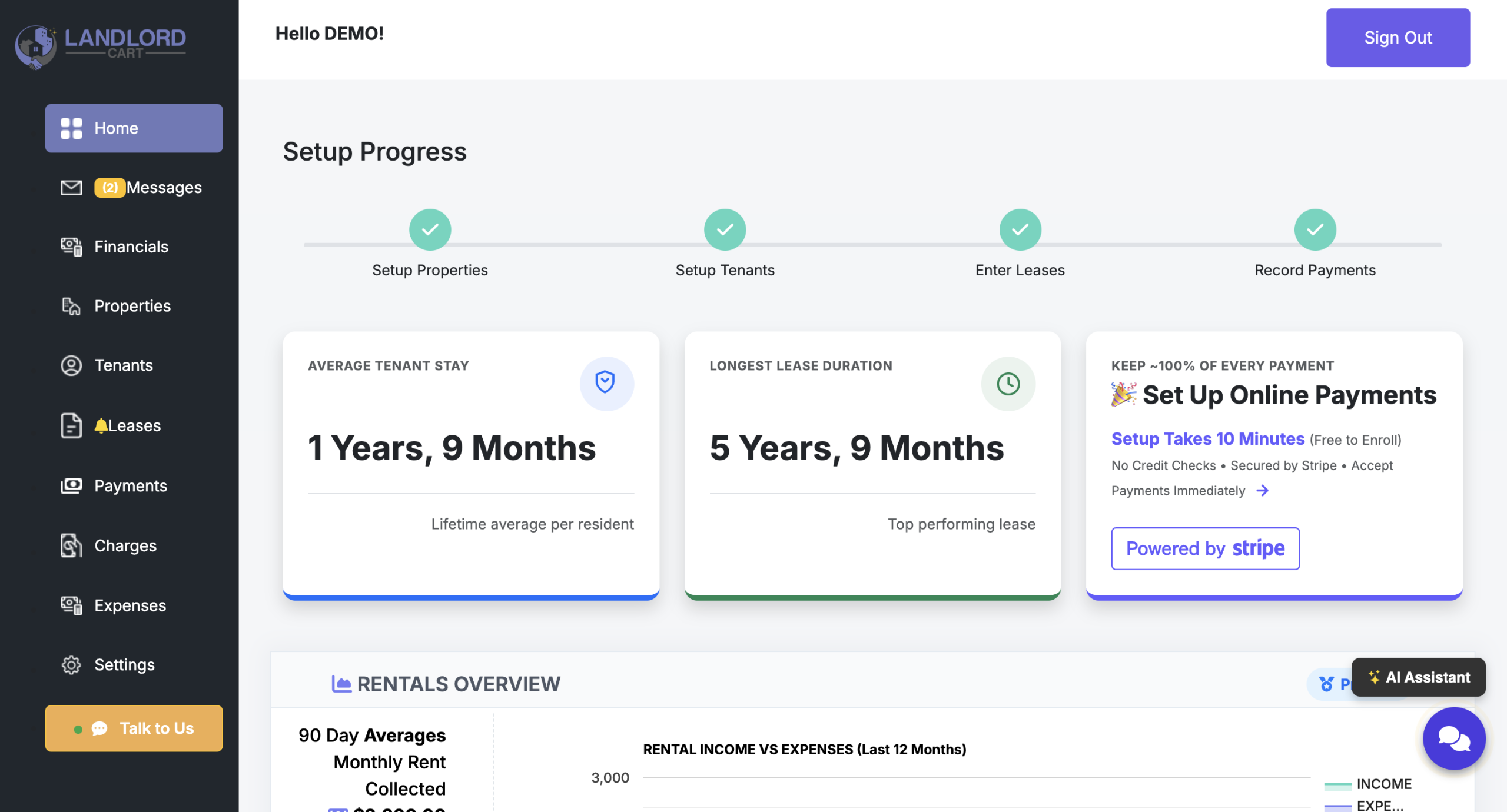
Landlord Cart is designed to be easy to use. When you log in at selfservice.properties, you land on your Dashboard — a summary of your portfolio’s financials, open maintenance tickets, and upcoming lease activity.

Everything you need is in the left-hand menu, organized in the order you’ll typically use it:

  • Dashboard → Properties → Tenants → Leases → Payments → Charges → Expenses → Message Center → Reports → Settings

Desktop vs. Mobile

  • Desktop: You will get the best experience on desktop. This is where you can see graphs and other key details that don’t display well on mobile.
  • Mobile: Mobile is great for quickly logging rent payments and other quick tasks while you are on the go.
How to Navigate Landlord Cart (Desktop & Mobile) - Screenshot 1

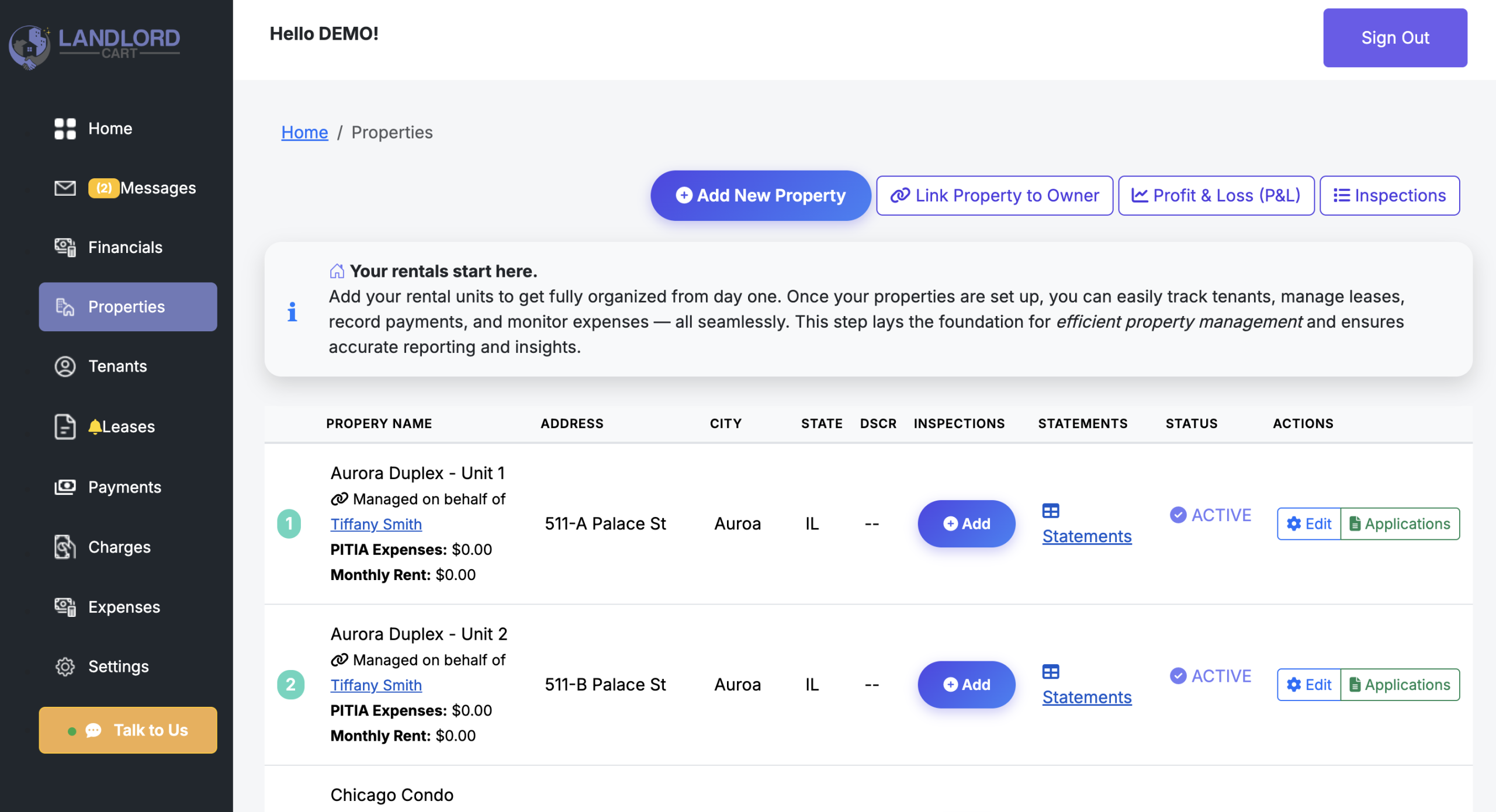
The Properties section is the foundation of your management workflow. In Landlord Cart, data flows in a specific order to ensure accuracy across your records:

Account > Properties > Tenant > Lease > Payments > Expenses

You must create a Property before you can add a Tenant. You must have a Tenant before you can create a Lease. This order is enforced so all financial records stay accurately linked to the correct property.

Key Property Details:

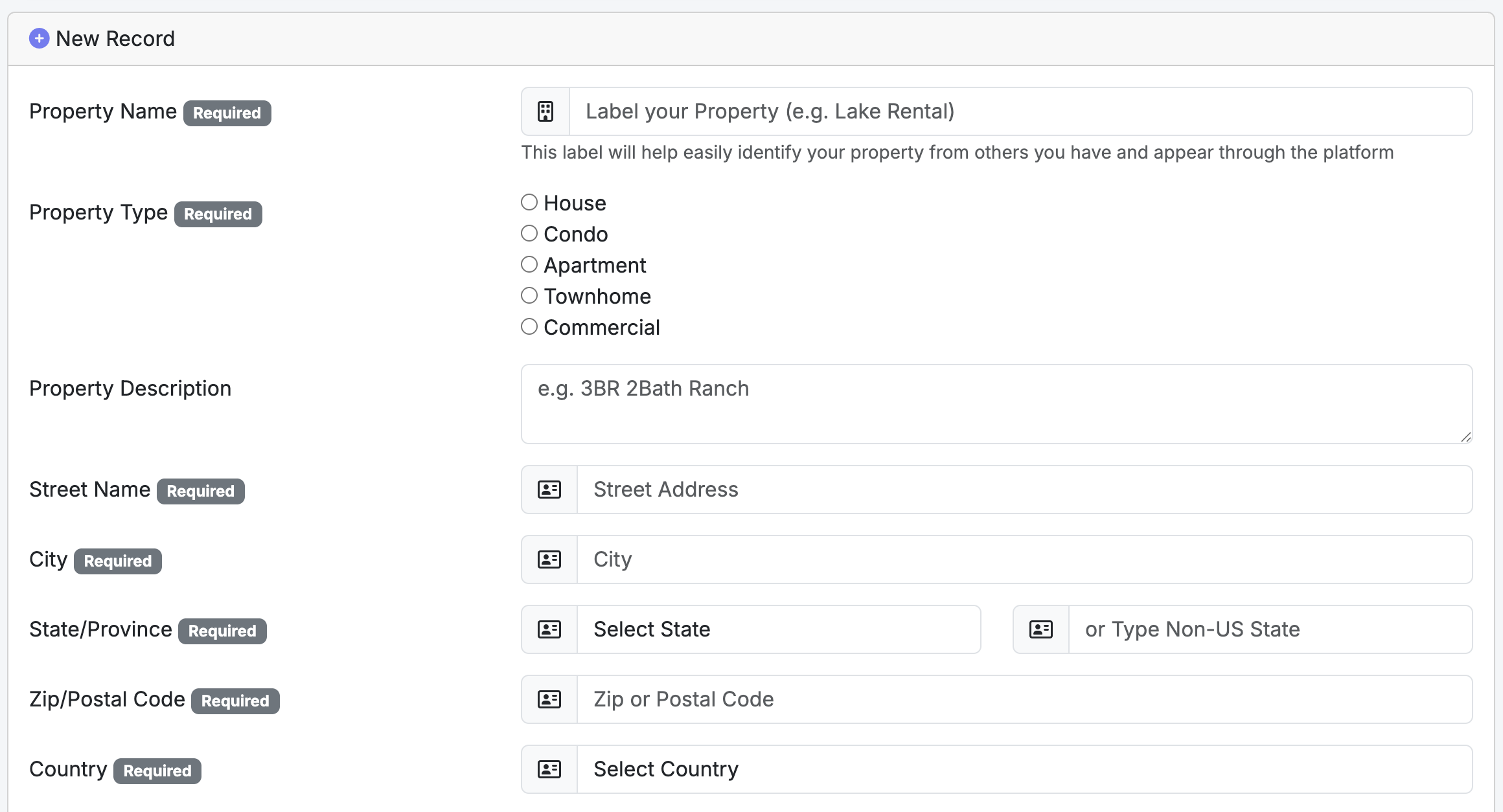
  • Property Address & Description: Enter the legal address and physical details of the unit.
  • Friendly Name: Assign a recognizable name (e.g., “South Florida Condo”). This name appears on tenant receipts and SMS confirmations, so choose something the tenant will recognize — not an internal code.

Plan Unit Limits:

  • Free Forever: up to 2 units
  • Starter: up to 10 units
  • Professional: up to 30 units

Tenant Applications:

  • You can manage the entire intake process from this screen, including accepting new applications and configuring custom applicant questions.

Owner Management:

  • If you manage properties for others, you can link a property to a specific Property Owner. This is a paid feature that provides the owner with their own access to the system, allowing them to view data and reports specifically for their property.
Setting Up Your Properties - Screenshot 1
Setting Up Your Properties - Screenshot 2

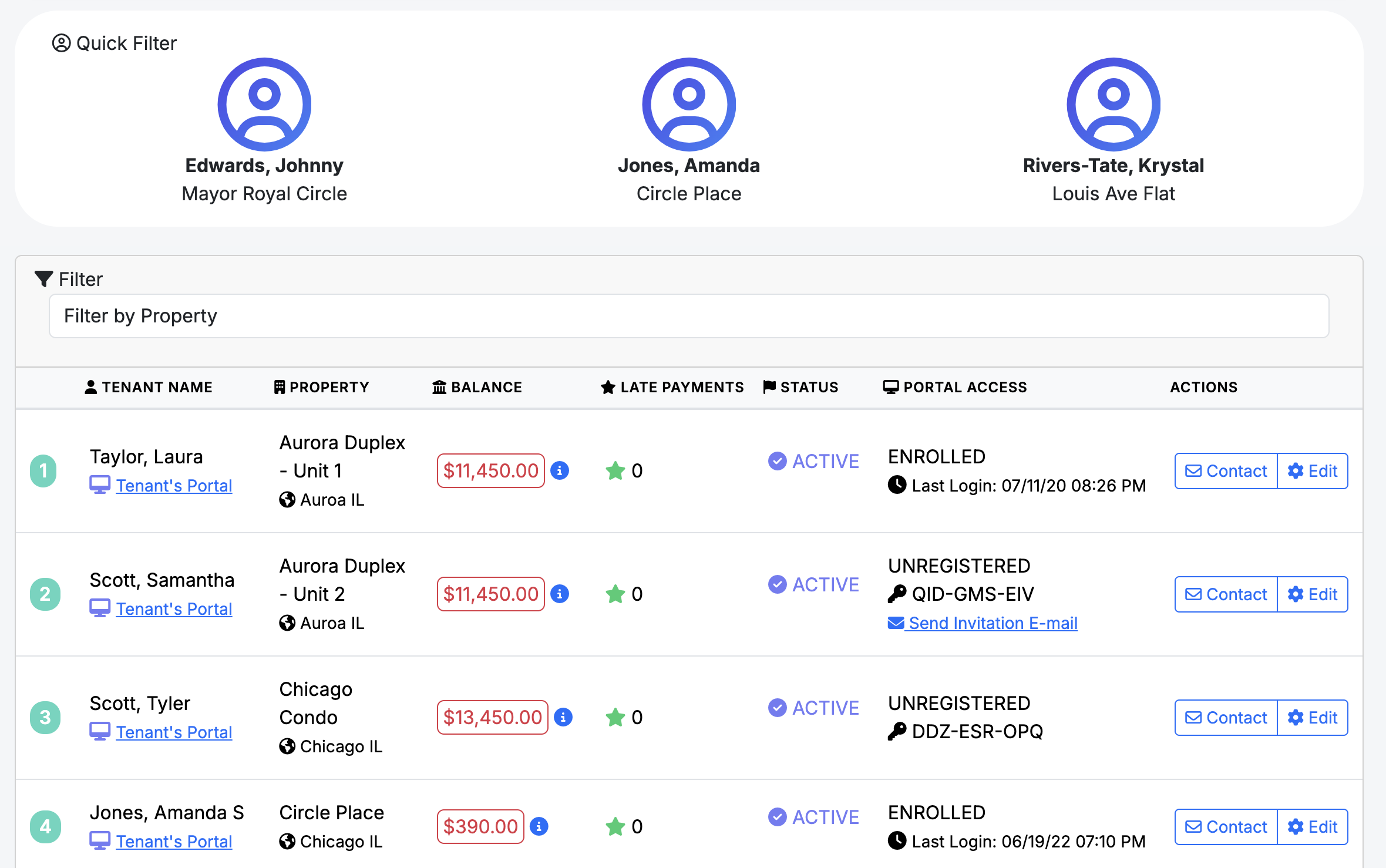
The Tenants section provides a comprehensive overview of your resident relationships and their portal activity.

Admin Oversight:

  • View as Tenant: Use the “Tenant’s Portal” link to see exactly what the resident sees. This is your primary troubleshooting tool — use it any time a tenant says their balance is wrong or a payment isn’t showing up. You’ll see their full account from their perspective.

Tenant Monitoring & Financials:

  • Balance Snapshot: View a real-time summary of each tenant’s current balance to track outstanding dues at a glance.
  • Late Payment Tracking: Monitor the number of late payments recorded for each tenant to identify payment trends.
  • Portal Access Logs: See the exact date and time of the tenant’s last login to confirm they are staying engaged with the system.

Tenant Onboarding:

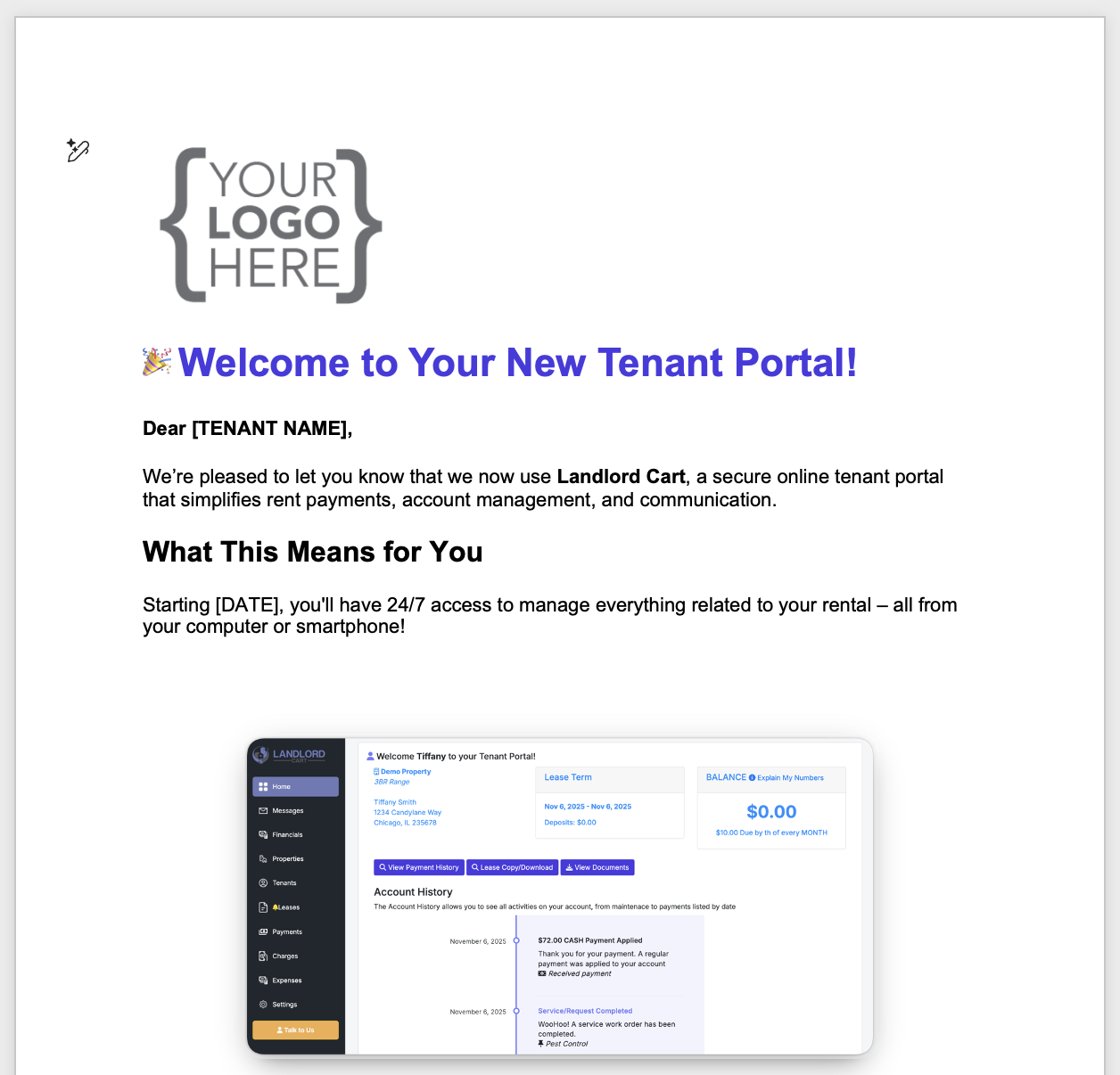
  • Welcome Letter Template: Download a customizable Word template to introduce your tenants to Landlord Cart. You can add your company logo to maintain a professional brand image.
  • Portal Invitations: Every tenant has a unique invitation code. Direct your tenants to selfservice.properties — the same professional URL used for your login — to create their account.

Critical Information Requirements:

  • Valid Contact Data: Ensure you enter a valid email address and mobile number for every tenant. These channels are used for automated alerts, receipts, charge notifications, and replies to maintenance requests.

Efficiency Tools:

  • Quick Filter: Instantly find specific tenants by name or filter by property.
Managing Your Tenants - Screenshot 1
Managing Your Tenants - Screenshot 2

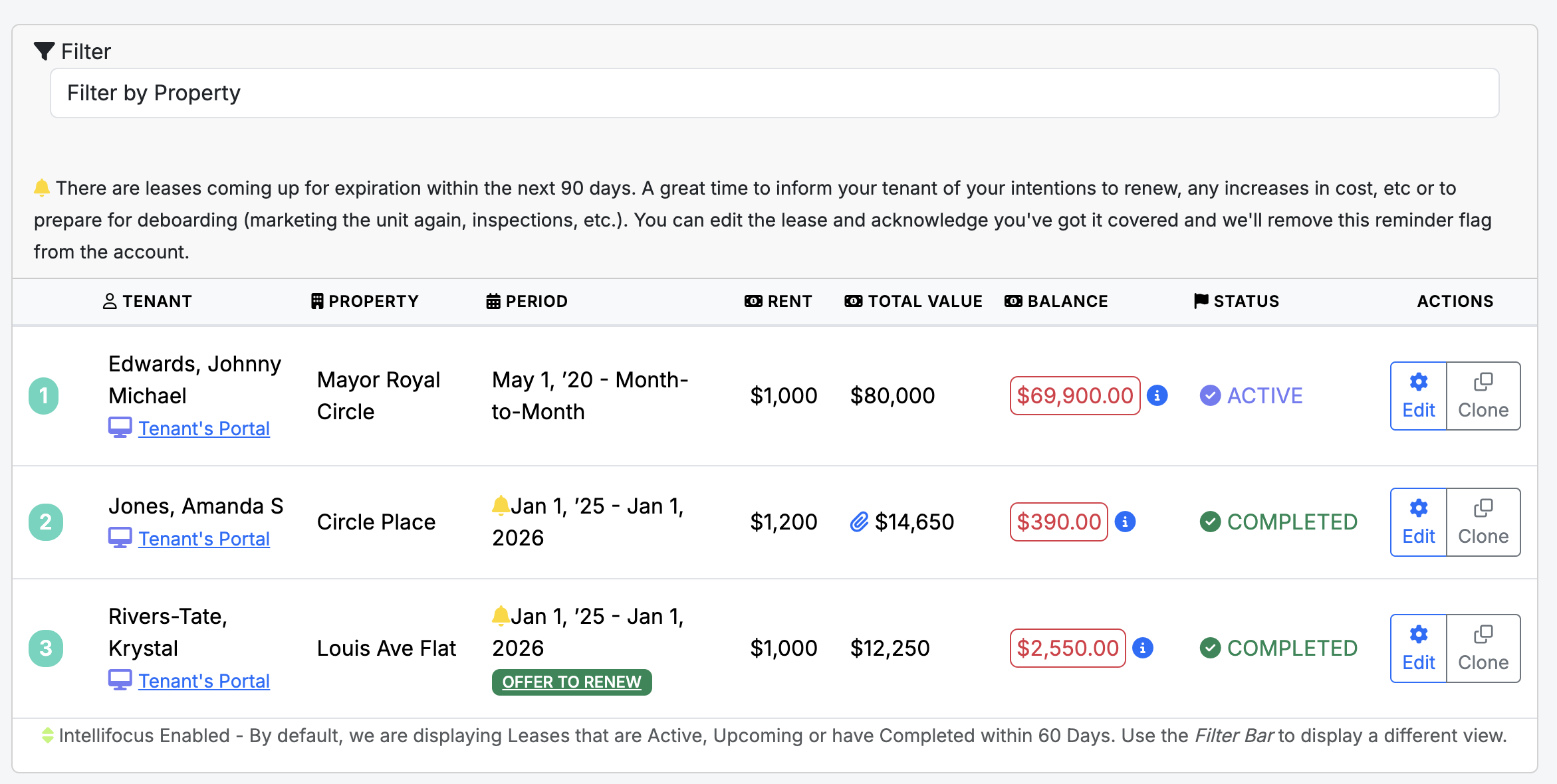
The Leases screen is the financial engine of the system. All automated calculations — including total amounts owed and late fee applications — are derived directly from the data entered here.

Lease Configuration & Financials:

  • Core Details: Enter the lease start date, monthly rent amount, and the “late after” grace period. If a payment is not logged by that date each month, the system flags the account as late and can trigger automated SMS reminders and late fee charges on paid plans.
  • Month-to-Month Leases: Set an end date 1–2 years out and use the clone or renewal flow each term.
  • Financial Overview: The system displays three key figures:
    • Monthly Rent: The base recurring charge.
    • Total Lease Value: Monthly rent multiplied by the number of months in the term.
    • Current Balance: What the tenant owes right now. A credit balance appears in green.
  • Friendly Name Referencing: Units are identified by the Friendly Name you assigned during property setup.

Lease Lifecycle & Renewals:

  • Status Tracking: The Status column automatically updates to show if a lease is Upcoming, Active, or Completed.
  • Cloning a Lease: Click Clone → update the Start Date and End Date → confirm the rent amount → Save. All other details carry over automatically.
  • Renewal Offers: If a lease is within 90 days of expiration, an Offer to Renew button appears, allowing you to send a formal renewal offer directly to the tenant.

Document Management & Compliance:

  • PDF Uploads: Upload your signed lease agreements so they are stored securely in the cloud.
  • Tenant Access: Once uploaded, tenants can view their lease details and download the PDF directly from their portal.
  • Lease Generator: Landlord Cart provides a 100% state-compliant Lease Generator. You can access this tool via the link on the homepage or directly from within the Lease screen.
Managing Your Leases - Screenshot 1

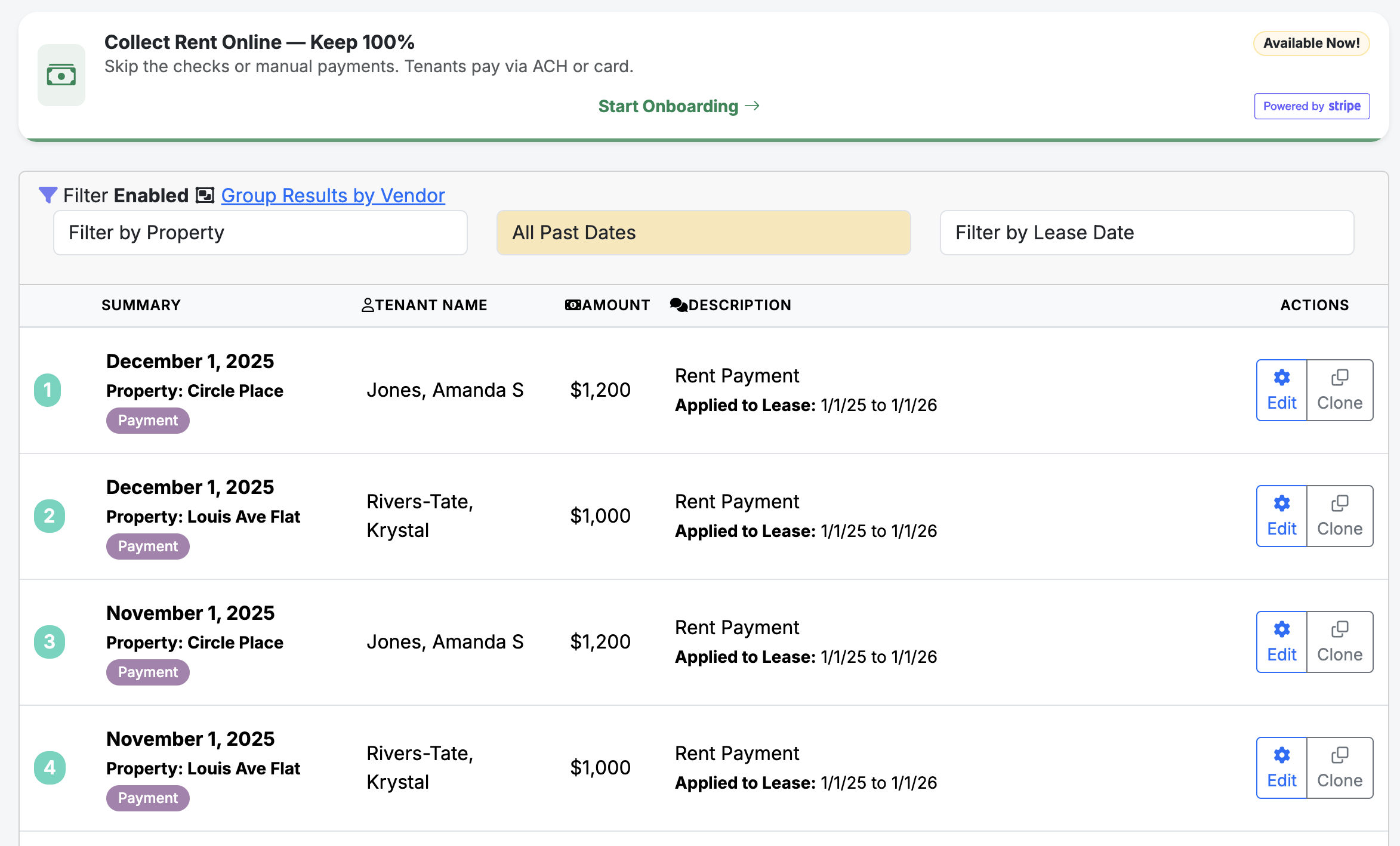
The Payments screen is the primary tool for tracking income and is optimized for mobile use to allow for real-time data entry while you are on the go.

Automated Stripe Integration:

  • Instant Credit Card Logging: If you use our integrated Stripe service, credit card payments are automatically recorded in the system the moment they are processed.
  • ACH Processing: For payments made via ACH, the system will automatically log the payment as soon as the funds have cleared.

Recording Manual Payments:

  • Timely Logging: For payments received outside of Stripe, log them on the day they are received. This ensures the system recognizes the account as current, preventing automated late fees or tenant reminders from being sent.
  • Partial Payments: If a tenant pays less than their full balance, log the amount received. The remaining amount stays on their account and displays in their portal until paid.
  • Overpayments: If a tenant overpays, the credit appears in green on the Lease screen and automatically offsets the following month’s balance — no action needed.
  • Payment Cloning: Use the Clone button to duplicate a previous payment entry. This copies all details except the date, allowing for rapid entry of recurring monthly rent.
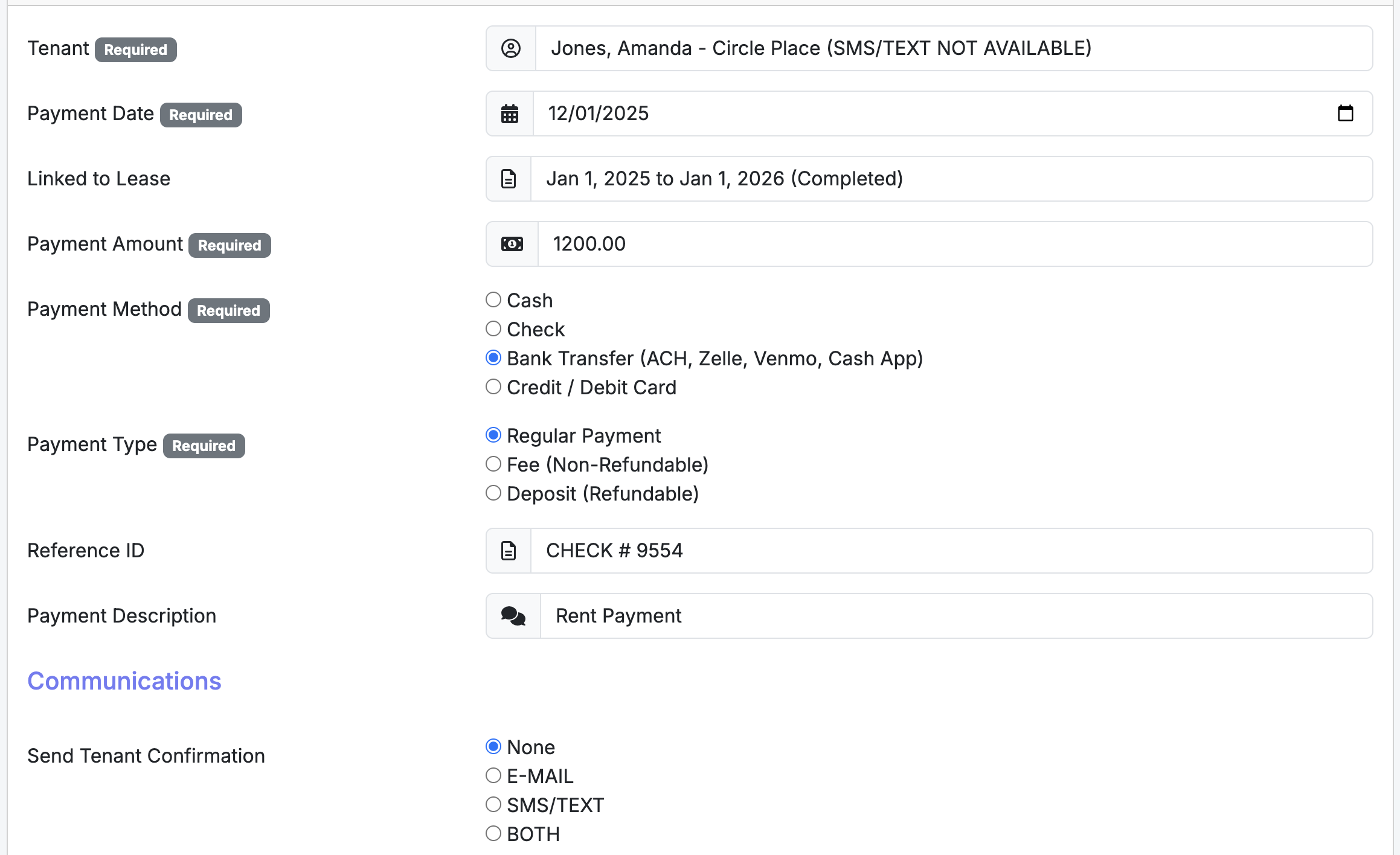
  • Tenant Notifications: When logging a payment, you have the option to send a confirmation receipt to the tenant via email or SMS.

Security Deposits:

  • Correct Categorization: When receiving a security deposit, select Security as the payment type. This ensures the funds are attributed to the security deposit ledger rather than applied to regular rent.

Notes & Privacy:

  • Reference ID: This field is private — visible to the landlord only. Use it for internal notes, check numbers, or transaction IDs.
  • Payment Description: This field is visible to the tenant in their portal. Use it for notes intended for the resident.
How to Log Rent Payments (Manual, Stripe & Auto-Logging) - Screenshot 1
How to Log Rent Payments (Manual, Stripe & Auto-Logging) - Screenshot 2

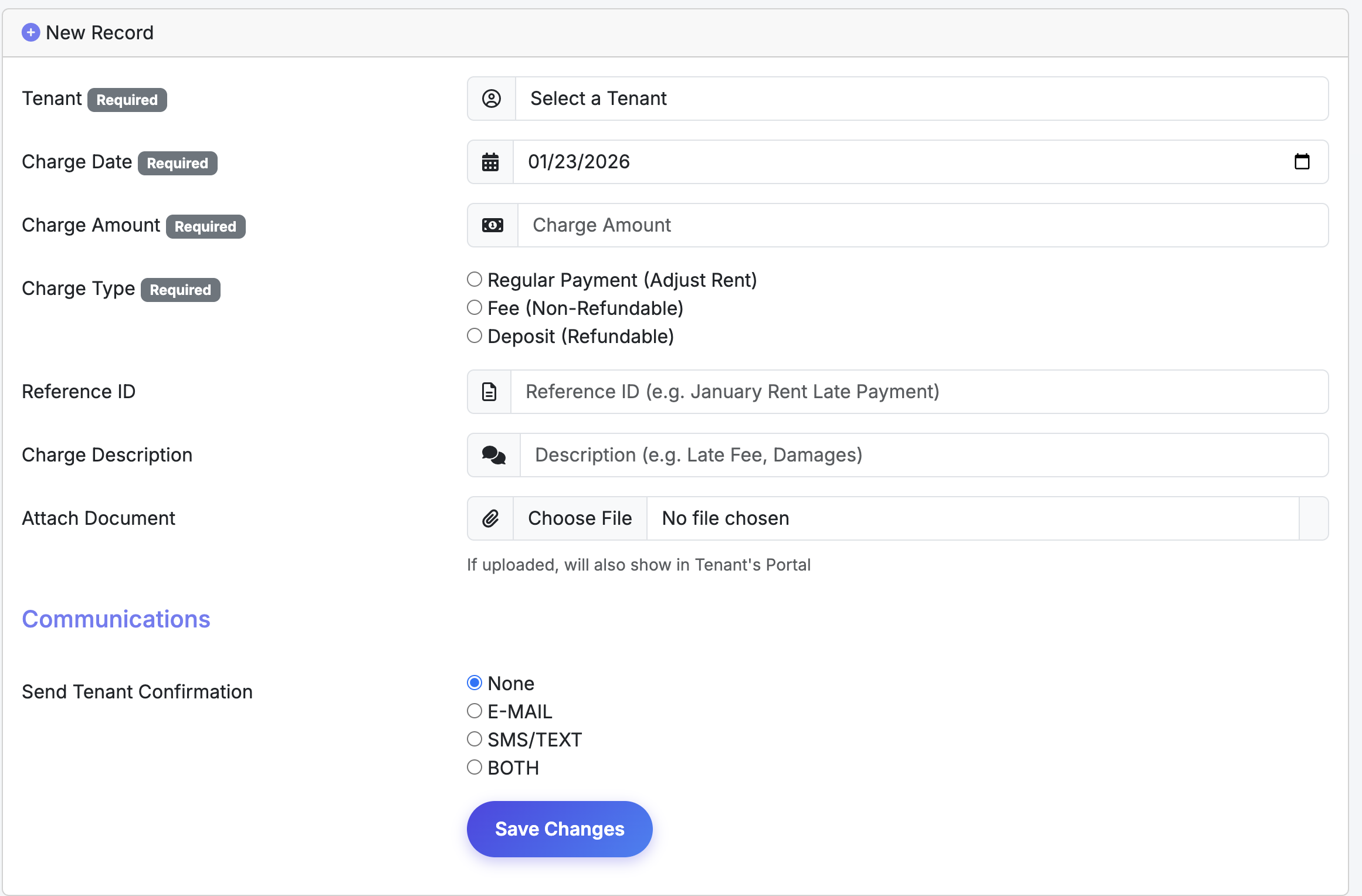
Important: Do not enter monthly rent on this screen. Rent is calculated automatically from your Lease settings. The Charges screen is strictly for one-time fees, penalties, and balance adjustments.

Exceptions and Extra Fees:

  • Ad-hoc Charges: Apply one-time costs such as late fees, key replacement charges, or non-refundable pet fees.
  • Rent Adjustments: Add or remove amounts from a tenant’s balance. For example, entering -$25 applies a discount and instantly reduces the total amount the tenant owes.

Tenant Transparency:

  • Portal Visibility: All entries made here appear in the Tenant Portal so residents can track their specific balance adjustments. The tenant also receives an automatic email and SMS notification when a charge is added.
  • Documentation: You can upload one attachment per charge — such as a photo of a repair invoice or a signed addendum — to provide the tenant with supporting evidence for the fee.

Common Use Case:

  • If you decide to allow a pet mid-lease, log a $300 non-refundable pet deposit here rather than rewriting the entire lease agreement.
One-Time Charges, Fees & Balance Adjustments - Screenshot 1

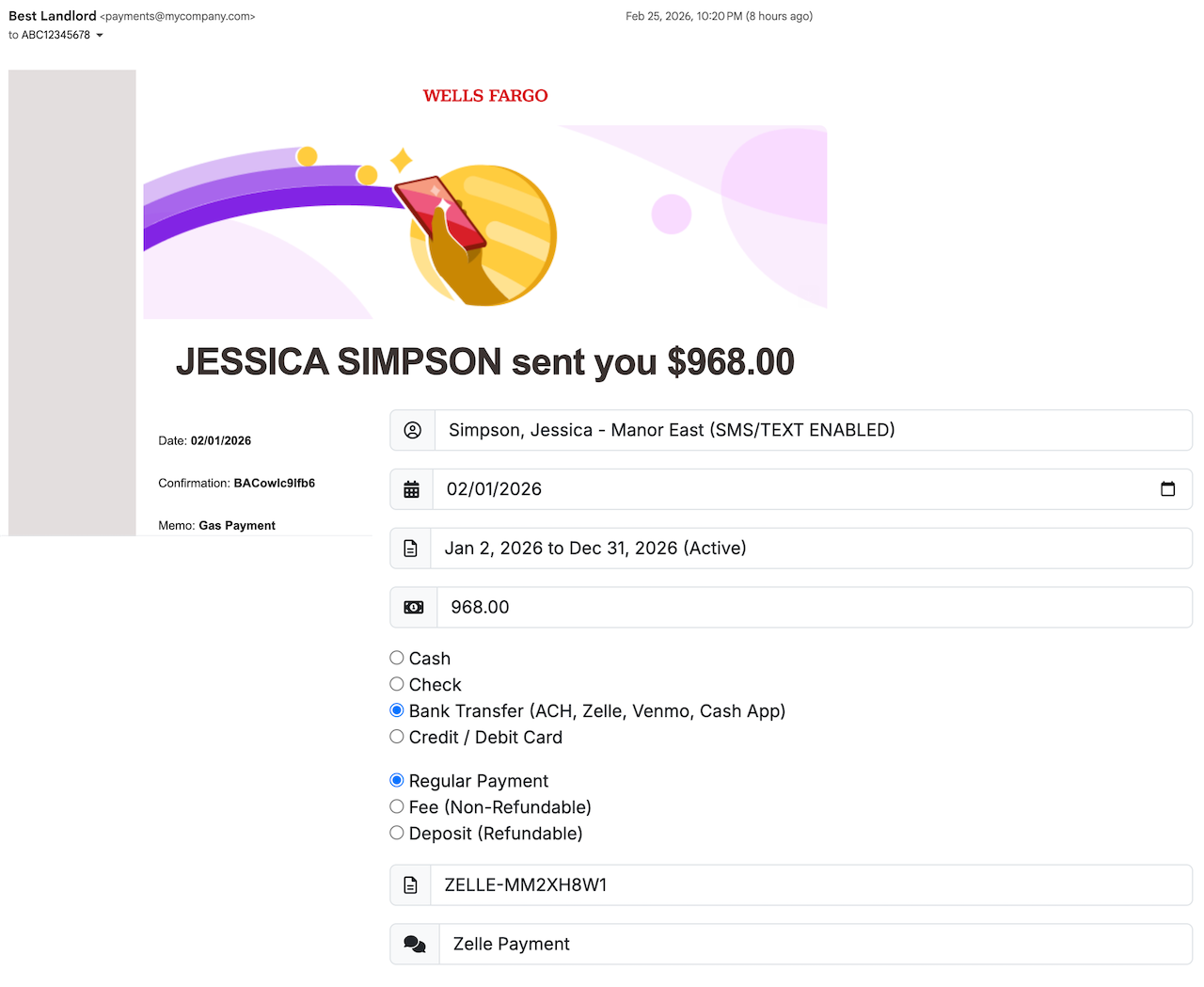
Landlord Cart uses AI to automatically detect, match, and log rent payments you receive via Zelle, Venmo, CashApp, or PayPal — no manual entry required. Simply forward the payment confirmation email you received and our system handles everything else.

How It Works

When a tenant sends you a payment through Zelle, Venmo, CashApp, or PayPal, you will receive a confirmation email from that service. Forward that email to your unique Landlord Cart payment address. Our AI will read the email, extract the payment details, match it to the correct tenant, and automatically log it to your Payments screen — then send a confirmation to both you and your tenant.

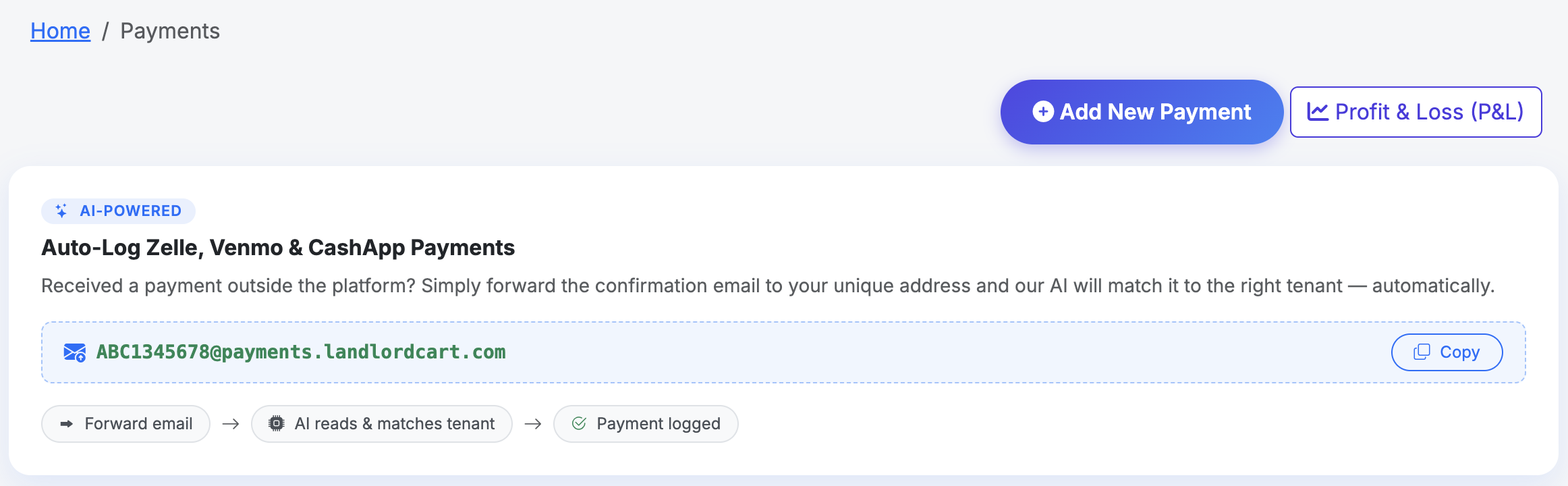
Your Unique Forwarding Address

Every Landlord Cart account has a unique, private email address assigned for this purpose. To find yours:

  1. Log in to your Landlord Cart account
  2. Click Payments in the navigation
  3. Your unique forwarding address will be displayed at the top of the screen

We recommend saving this address to your phone contacts under a name like “Rent Logger” so you can forward payment confirmations quickly without searching for the address.

How the AI Matches Your Tenant

Once you forward the email, our AI analyzes the content and attempts to match the payment using the following priority order:

  1. Name Match: The AI compares the sender’s name against your active residents. Partial and fuzzy matches are supported (e.g., “Mike Johnson” will match “Michael Johnson”).
  2. Amount Match: If a name match cannot be made, the AI checks whether the exact payment amount matches the rent on any active lease.
  3. No Match Found: The system will reply letting you know the payment could not be auto-matched and ask you to log it manually.

What Gets Logged Automatically

When a payment is successfully matched, the system will:
  • Log the payment to your Payments screen with the correct tenant, property, and lease
  • Set the payment method to ACH and the description to reflect the source (e.g., Zelle Rent Payment)
  • Send an email and SMS confirmation to you as the landlord
  • Send an email and SMS confirmation to the tenant (if contact information is on file)

Best Practices

  • Save your address as a contact. Add your unique forwarding address to your phone contacts as something like “Rent Logger” so you can forward payment emails quickly.
  • Forward the original confirmation email only. Only forward the payment confirmation email sent directly by Zelle, Venmo, CashApp, or PayPal. Do not forward receipts, bank statements, or other documents.
  • Consider Auto-Forwarding: If your email provider supports filters (Gmail, Outlook, Yahoo, etc.), you can create a rule to automatically forward incoming messages from these services to your unique payment address. If an unrelated email gets forwarded, the system will find no match and notify you — it will not log anything incorrectly.
  • Keep your address private. Your forwarding address is exclusively assigned to your account. Do not share it with others.
  • Verify new tenants are in the system. The AI can only match a tenant if they are added to your Landlord Cart account as an active resident with an active lease.
Auto-Log Zelle, Venmo, CashApp & PayPal Payments by Email Forward - Screenshot 1
Auto-Log Zelle, Venmo, CashApp & PayPal Payments by Email Forward - Screenshot 2

The Expenses screen is used to document all outflows related to your properties. Proper recording here keeps your portfolio organized and simplifies end-of-year tax preparation.

IRS Compliance (US Customers): Landlord Cart is designed to help you stay IRS compliant by recording payments and expenses in the calendar year they occur. All tenant payments — except security deposits — are recorded as revenue. Entries in this section are recorded as deductible expenses.

Recording an Expense:

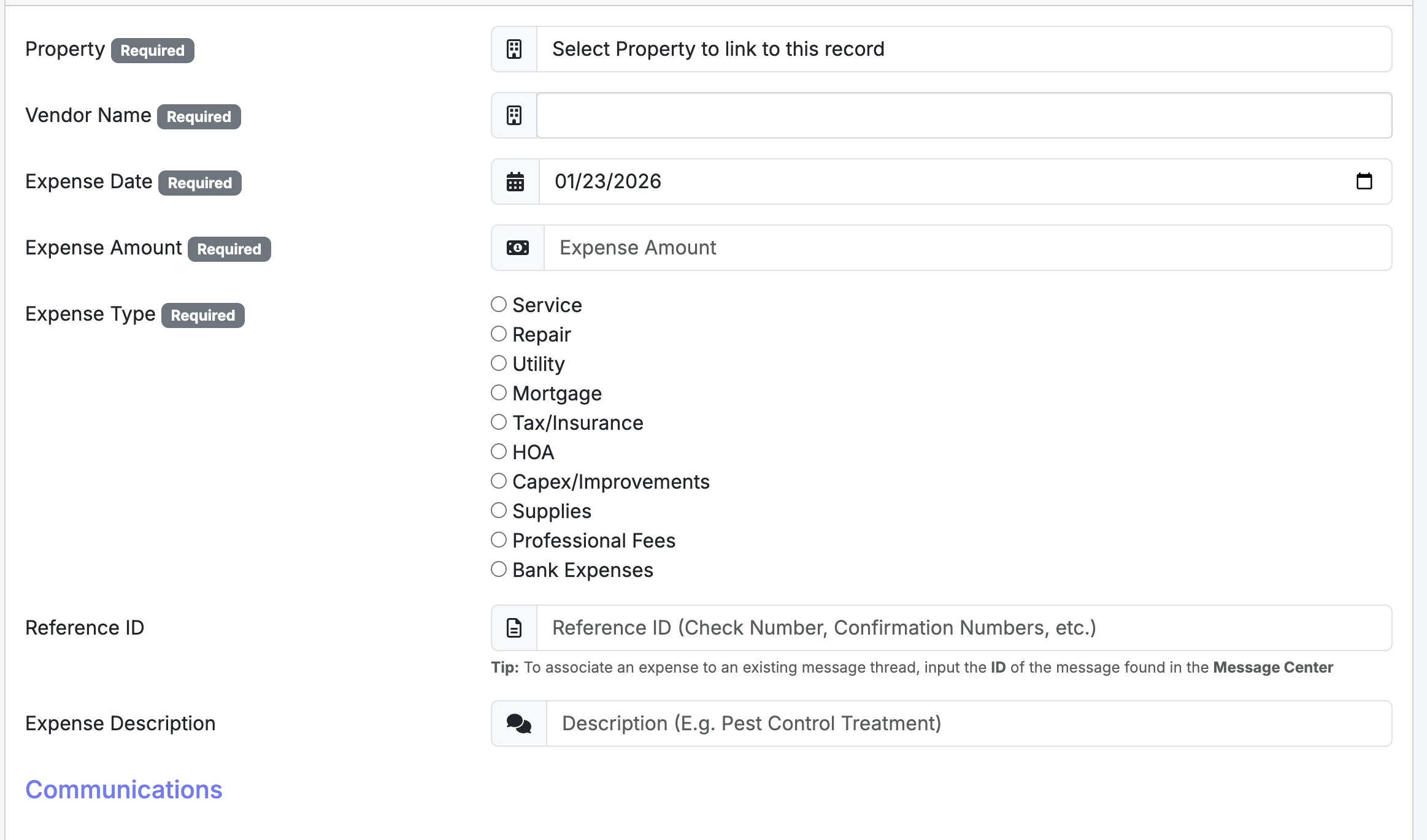
  • Property Linking: Every expense must be linked to a specific property (referenced by its Friendly Name) to ensure accurate property-level financial reporting.
  • Expense Categorization: Assign each entry to a category:
    • Operating: Service, Repair, Utility, Supplies, HOA
    • Financial: Mortgage, Tax/Insurance, Bank Expenses, Professional Fees
    • Capital: Capex/Improvements
  • Reference ID: Use this field to track check numbers or invoice IDs. Tip: If the expense is related to a specific maintenance request, enter the Message ID from the Message Center to link them together.
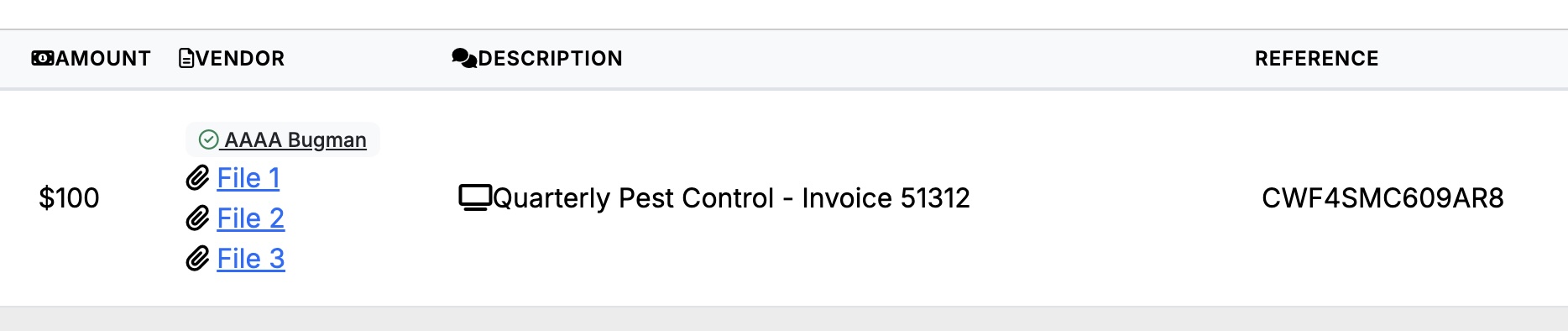
  • Attachments: Upload digital copies of receipts, invoices, or work orders directly to the record. Up to 3 attachments per expense entry.

Tenant Communications:

  • Display to Tenant: If set to “Yes,” the tenant can see the Expense Description in their portal. Available for Service and Repair types only. Useful for showing a tenant that a requested repair has been paid for and completed.

The Importance of Vendors:

  • Detailed Reporting: Entering a specific vendor name for every transaction populates your End of Year (EOY) reports and budget summaries, allowing you to see exactly how much you paid to specific contractors or utility companies over the year.
  • Vendor Filtering: Filter your expense list by vendor name to quickly audit past payments to a specific plumber, electrician, or supplier.
Tracking Property Expenses for Tax & Reporting - Screenshot 1

If you have a mortgage on a rental property, Landlord Cart allows you to incorporate your IRS 1098 mortgage interest statement directly into your Profit and Loss report for a more complete and accurate financial picture.

Accessing the 1098 Feature

  • Click Financials in the left-hand navigation.
  • Click View P&L Report.
  • Filter the report by a specific property.
  • At the bottom of the filtered report, a prompt will appear asking if you have a 1098 to include.

How the Data Is Used

The report pulls mortgage-related data from two sources and combines them for a complete picture:

From Your Expense Screen

  • Your total mortgage payments logged under expenses should reflect PITI — Principal, Interest, Taxes, and Insurance.
  • This is the standard real estate convention, particularly when taxes and insurance are covered through an escrow account.

From Your 1098 Statement

  • Enter the mortgage interest total from your IRS 1098 statement directly into the system.
  • Landlord Cart will spread that total evenly across 12 months and incorporate it into your P&L report.
  • This gives you an accurate monthly view of your true mortgage interest cost alongside your rental income and other expenses.

Attachments

  • You can upload a copy of your 1098 statement directly to the record for safekeeping.
  • One file attachment is supported per 1098 entry.

The Settings section is where you manage your account security, professional branding, and automated tenant features. Keeping this information current ensures your communications and financial processing run smoothly.

Company and Account Information:

  • Profile Details: Update your company name, contact person, and physical address. This information is used for system records and professional correspondence.
  • Account Security: Change your login email address or update your password.
  • Units Managed: Track the total number of units currently active under your subscription. If you reach your plan’s unit limit, the system will prompt you to upgrade before adding additional properties.

Branding:

  • Custom Logo: Upload your company logo to personalize the platform. We recommend a transparent PNG file (max 320px wide, 70–100px high). This logo appears on tenant portals and communications.

Online Payments & Processing Fees:

  • Payment Configuration: Enable or disable online rent collection via our integrated Stripe service.
  • Fee Management: Choose whether the Tenant or the Landlord pays the bank processing fees for ACH transactions. (Available on Starter and Professional plans. Tenants are always responsible for credit and debit card fees.)
  • SMS Notifications: Under Notifications, you can enable or disable SMS alerts for payment receipts, late payment reminders, and maintenance updates.

AI Virtual Agent:

  • Enable the AI Virtual Agent for the Tenant Portal here. See the AI-Powered Virtual Agent guide for full details on what it does and which plans include it.

Additional Administrator Access:

  • Secondary Users: Grant “Full Admin” access to a second person (such as a partner or property manager) to help manage the portfolio.
  • Notifications: Secondary administrators receive copies of system notifications via Email and SMS if their contact details are provided.
  • Management: As the Superuser, you retain control over their access level and are responsible for resetting their credentials if forgotten.

Attachments let you associate supporting files directly with records throughout the platform. Supported file types include PDF, Word, plain text, and common image formats (JPG, PNG, etc.).

Screens That Support Attachments:

  • Settings – Upload your company logo (image files only)
  • Documents – Attach 1 supporting file per record
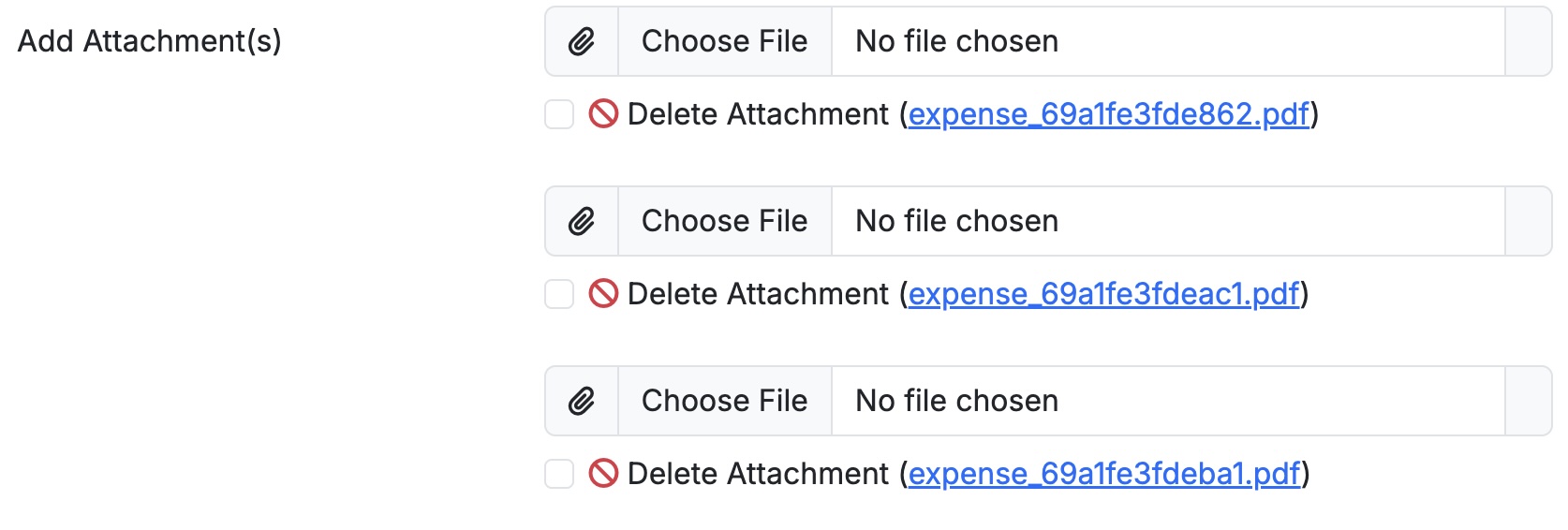
  • Expenses – Attach up to 3 files per record (e.g., receipts)
  • Inspections – Attach up to 3 files per record (e.g., photos, reports)
  • Leases – Attach 1 file per record
  • Owners – Attach 1 file per record
  • Vendors – Attach 1 file per record
  • Charges – Attach 1 file per record (visible to tenant in their portal alongside the charge)
  • IRS 1098 – Attach 1 file per record
  • Message Center – Post multiple attachments, one at a time (see below)

Message Center Attachments:

Each message entry supports one attachment at a time, but you can post as many messages as needed to share multiple files. When composing a message, you have the option to mark it as Private:

  • Private messages – Visible to internal staff only; locked from tenant view in the portal
  • Standard messages – Visible to all parties including the tenant

Uploading & Replacing Attachments:

Open the record, click the attachment field to browse and select your file, then save the record. To replace an existing attachment, clear the current file, upload the new one, and save.

⚠ Warning: Removing an attachment is permanent and cannot be undone. Download a local copy before deleting if you may need it later.
Uploading & Managing File Attachments Across the Platform - Screenshot 1
Uploading & Managing File Attachments Across the Platform - Screenshot 2

Landlord Cart gives you flexible tools to view and filter your data quickly across the platform, as well as dedicated financial reports to track income, expenses, and budget performance across your portfolio.

Quick Filters

Most screens throughout the software include a built-in quick filter bar. Use it to narrow down your data without running a formal report. Filters vary by screen but generally allow you to search by:

  • Resident – view records tied to a specific tenant
  • Lease – isolate activity for a particular lease
  • Property – focus on a single unit or address
  • Date Range – narrow results to a specific time period

Intellifocus & Default View

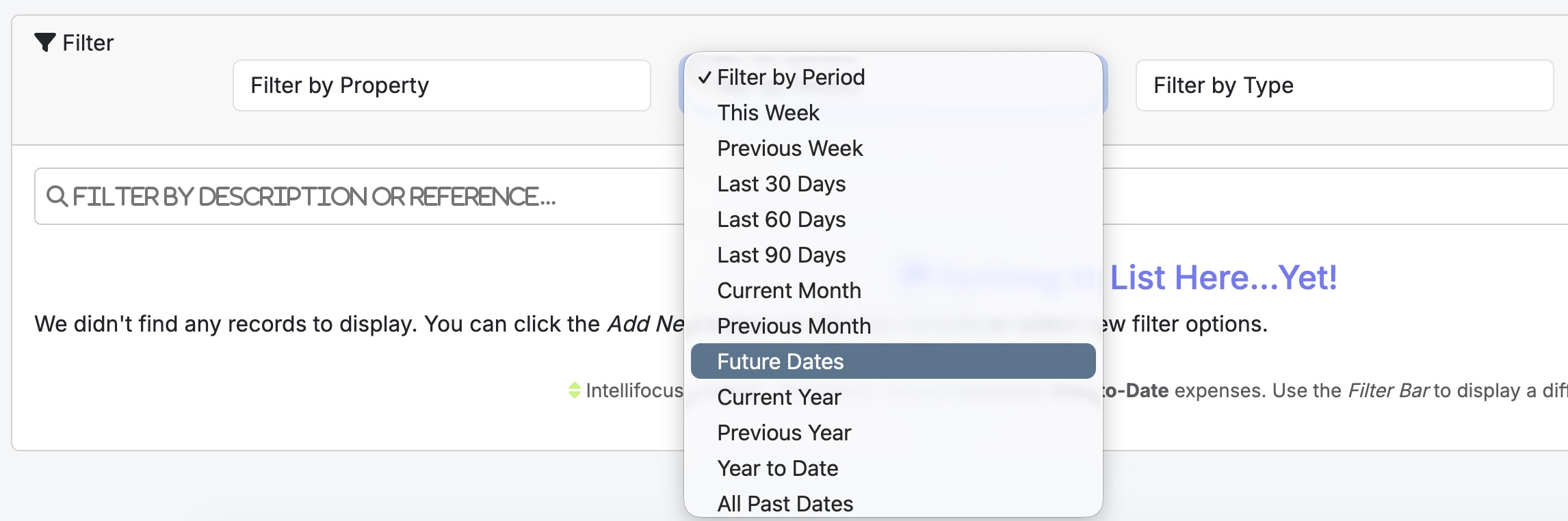
When you first open the Expenses screen, Landlord Cart automatically applies Intellifocus — a smart default that displays only Year-to-Date expenses. This keeps your view clean and relevant even as your data grows over time.

You can always use the Filter Bar to change what’s displayed. For example, if you’ve added an expense with a future due date (such as an upcoming tax payment), it won’t appear in the default Year-to-Date view.

To view future-dated expenses:

  • Open the Date Filter in the Filter Bar
  • Select Future Periods

💡 Tip: Any expenses dated in the future — including taxes or other planned costs — will appear once you switch to the Future Periods filter.

Financial Reports

To access your financial reports, click Financials in the left-hand navigation menu. Two reports are available:
Profit and Loss (P&L) Statement

  • Tracks all rental income and expenses in a single consolidated report.
  • Shows profits, costs, and trends across your portfolio at a glance.
  • Useful for tax preparation, lender documentation, and overall portfolio performance review.

Annual Budget & History

  • Helps you plan and optimize your rental budget year over year.
  • Review past spending patterns and forecast future costs to make smarter financial decisions.
  • Useful for identifying high-cost properties and planning capital improvements.
Filtering Data & Financial Reports - Screenshot 1

If a property has multiple occupants such as roommates or co-tenants, Landlord Cart supports adding each person as their own individual tenant record under the same property. This is the recommended approach and gives you far greater control over payments, deposits, and communications.

How It Works

  • Each tenant is added separately under the same property.
  • Every tenant gets their own portal login, their own account history, and their own ledger.
  • Each tenant can be issued their own lease record reflecting their individual rent obligation.

Why Separate Records Are Best Practice

Keeping roommates as individual records gives you clean separation across every area of the platform:

  • Payments — each tenant pays their own share online independently, reducing confusion over who paid what.
  • Banking — ACH and Auto-Pay are set up per tenant, so a banking issue with one occupant does not affect the other.
  • Security Deposits — deposits are tracked and returned separately per tenant.
  • Late Fees — late payment tracking and fee history is maintained individually for each occupant.
  • Communications — maintenance requests, messages, and notifications are handled per tenant through their own portal.

Financial Reporting

  • While each tenant is tracked individually, all income from the same property rolls up together at the property level on your Profit and Loss report.
  • This gives you clean per-tenant visibility day to day while maintaining accurate property-level financials for tax and reporting purposes.

AI Assistants and Features

Landlord Cart utilizes advanced AI to streamline communication and financial data entry for both you and your tenants. These features save time by handling routine inquiries and automating record-keeping.

Tenant AI Virtual Agent (Starter & Professional Plans):

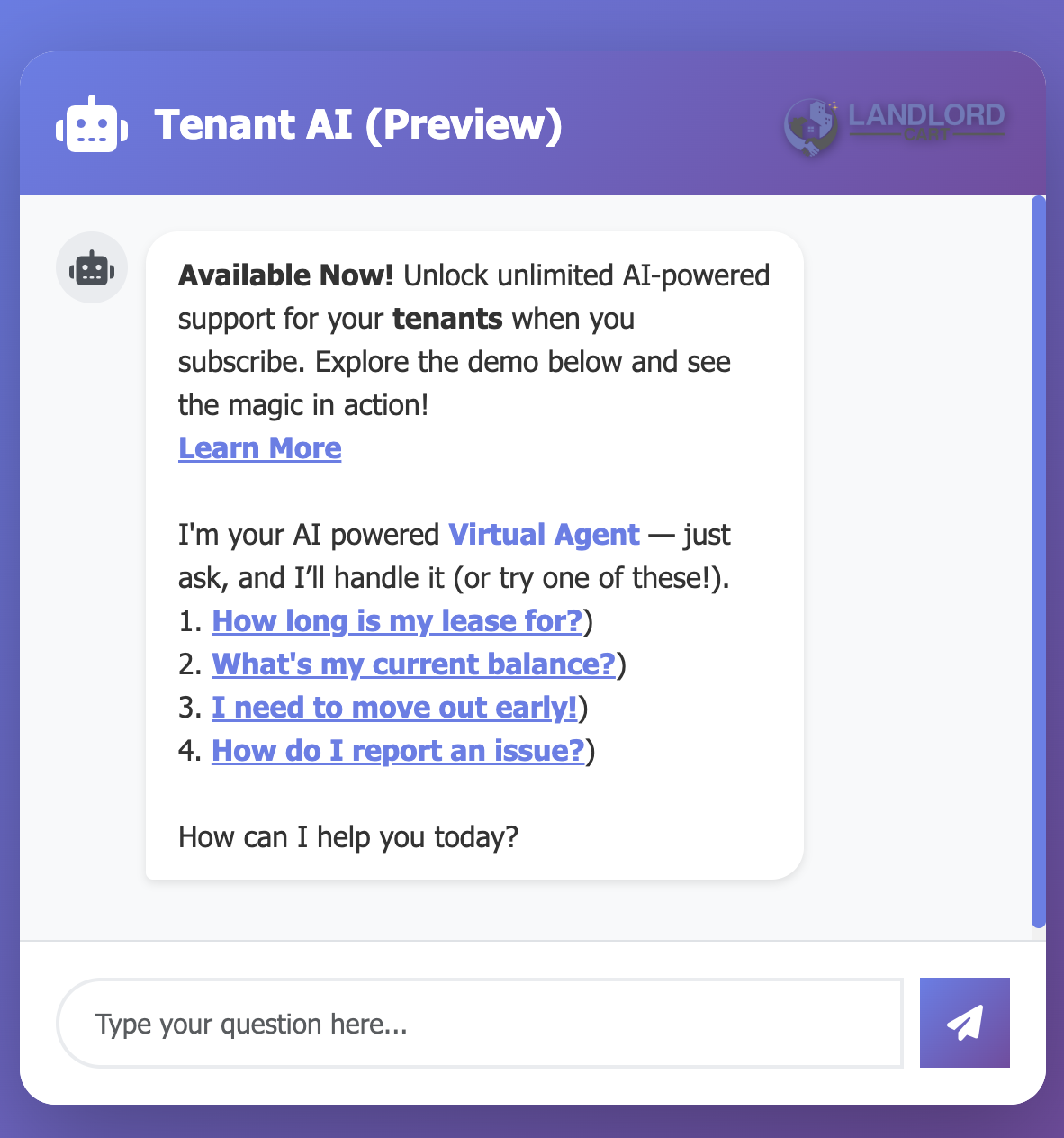
When enabled in your Settings, tenants have access to a 24/7 Virtual Agent within their portal. This agent provides immediate answers to common questions without requiring your manual response, such as:

  • Lease Inquiries: “How long is my lease for?”
  • Financial Status: “What is my current balance?”
  • Move-out Procedures: “I need to move out early!”
  • Maintenance Reporting: “How do I report an issue?”

AI Message Revisions (All Plans):

Both landlords and tenants can use AI-powered message assistance. This tool suggests professional rewrites for communications sent through the Message Center, ensuring all correspondence remains clear and professional.

AI Expense Entry (Professional Plan):

Instead of filling out every expense form field manually, describe the transaction in plain English and the AI will populate the fields for you.
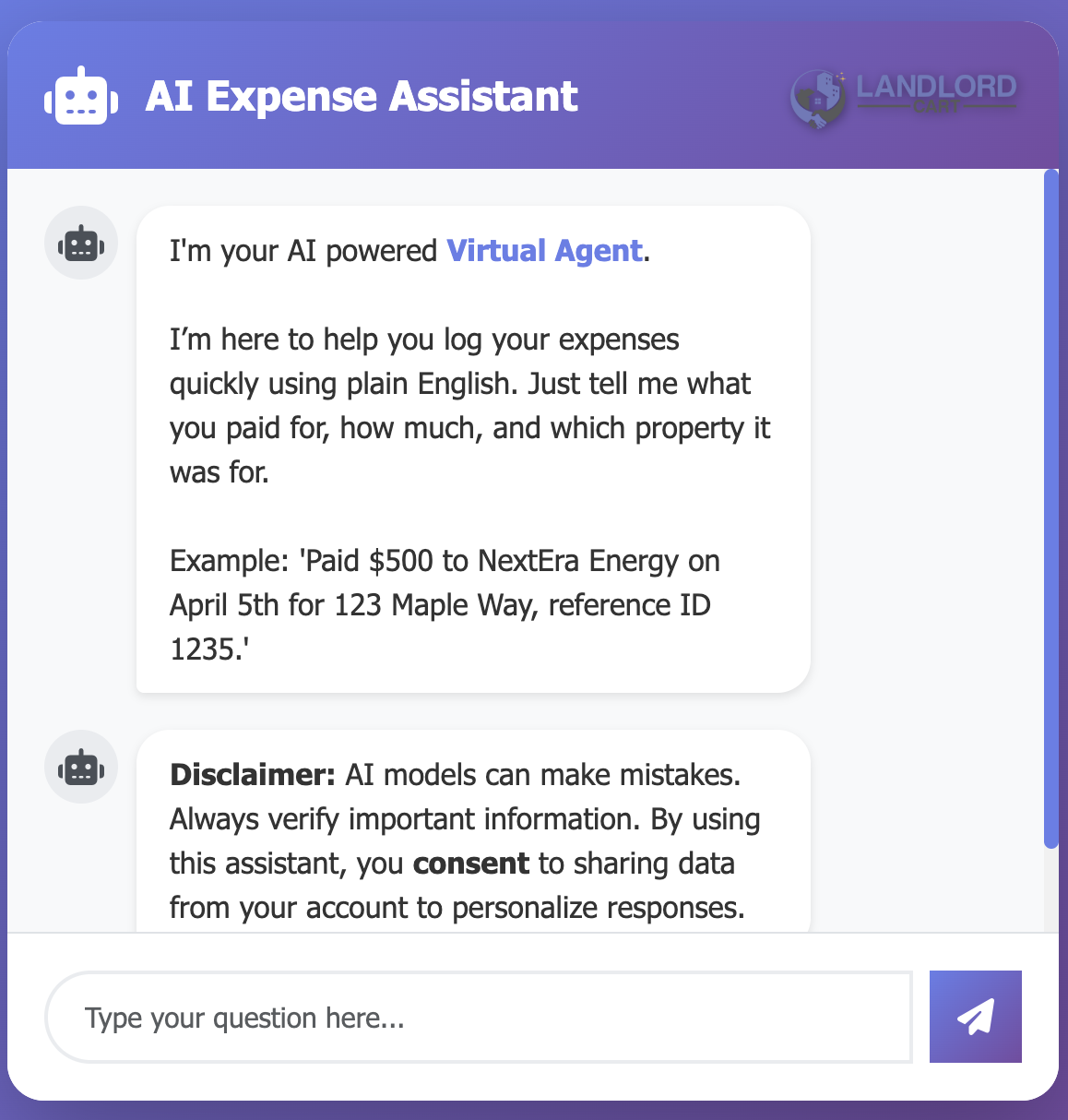
  • How it works: Provide the vendor, amount, date, and property in a single sentence.
  • Example: “Paid $500 to NextEra Energy on April 5th for 123 Maple Way, reference ID 1235.” — The AI parses this and pre-fills all relevant fields in your expense ledger for your review before saving.
AI Virtual Agent: Tenant Support, Message Help & Expense Entry - Screenshot 1
AI Virtual Agent: Tenant Support, Message Help & Expense Entry - Screenshot 2

AI Renewal Assistant — Meet Alex

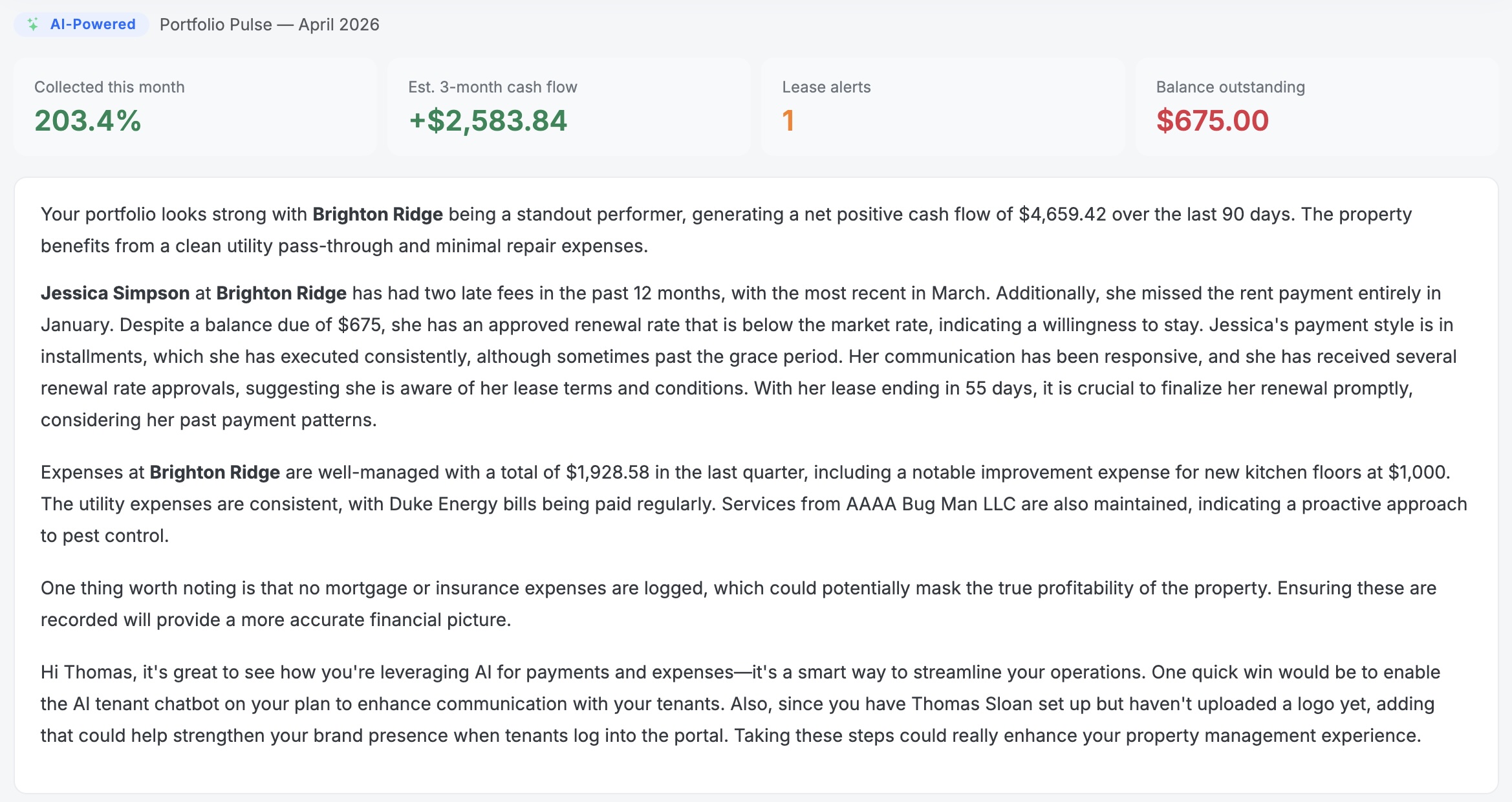
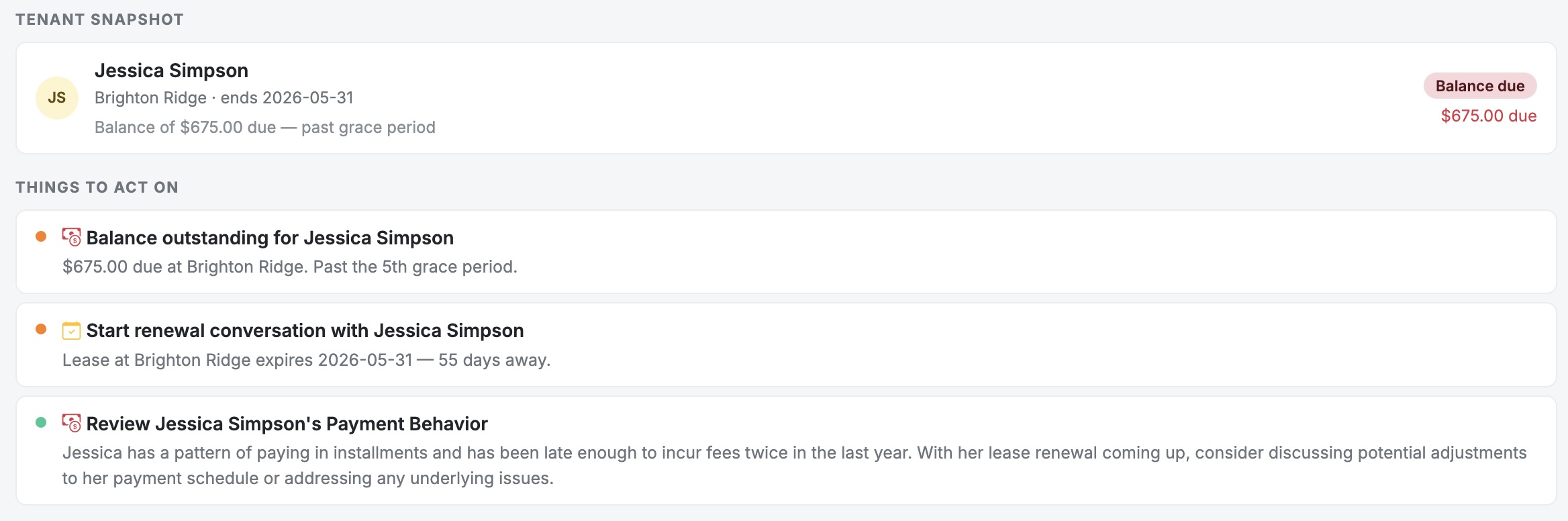
The AI Renewal Assistant is an exclusive feature for paid Landlord Cart customers that handles lease renewal negotiations automatically. Tenants chat with an AI specialist named Alex who guides them through a structured, data-driven conversation — using their real payment history, property expenses, and current market rates — while staying within the financial limits you set. Deals at or above your floor get approved on the spot. Anything below it comes to you for review.

How It Works for Your Tenant

From the tenant’s perspective, Alex works for them — helping them understand their position and get the best rate they can. This framing is intentional: tenants who feel heard are more likely to renew and less likely to walk. Alex follows a natural conversation that builds trust at every step.

  1. Greeting — Alex introduces himself, explains he is on the tenant’s side, and notes that tenants using the tool typically lock in better rates than the standard renewal offer.
  2. Confirm Current Rent — Alex states the rent on file and asks the tenant to confirm.
  3. Market Check & Payment History — Alex shares the market rate for comparable units alongside the tenant’s actual late fee history — by date and amount — in the same message.
  4. Property Improvements — Alex references real expense records from your account by name and amount (e.g., “New Kitchen Floors — $1,000 in January”). If no expenses exist, he acknowledges it and moves on.
  5. Financial Situation — Alex asks if anything has changed for the tenant. Conversational context only — it does not affect the offer.
  6. Recommendation — Alex proposes a starting rate of 3% above current rent, automatically floored at your minimum. He frames it against market rate so the tenant sees the savings.
  7. Negotiation — See below.
  8. Agreement — Once a number is agreed, Alex presents a clean summary and a prominent action button to finalize.

How Alex Negotiates

Alex never jumps straight to your floor. If a tenant pushes back, he works down gradually — splitting the difference in rounds — before landing at your minimum and holding firm.

Counter Round What Alex Does
Round 1 Splits the difference between the starting offer and the tenant’s ask.
Round 2 Inches closer toward your floor.
Round 3+ Lands at your minimum and holds there regardless of what the tenant says.
After 3–4 failed attempts Alex offers the tenant two choices: submit their number to you for discretionary review, or end the session and let you generate the renewal on your own terms.

After two or more failed counters, Alex will also naturally reference local rental market trends — mentioning that rents in the area have been rising and that the proposed rate is already well below that. This fires once per session, not on every counter.

A note on floor visibility: Alex is designed to keep your minimum private. However, after several rounds of back-and-forth where the tenant keeps pushing below what Alex can approve, Alex may reference the floor directly — for example, “The best I can approve is $X.” This is intentional: at that stage in the conversation, holding the line clearly is more effective than continuing to deflect. Keep this in mind when setting your minimum — it is a number the tenant may ultimately see if negotiations go deep.

Your Floor Is Always Protected

Beyond Alex’s instructions, the system has independent safeguards built in at the code level to give you confidence that your floor is never breached — even in edge cases. The system will never process a renewal at or below the tenant’s current rent, will never approve a rate below your minimum, and will never submit anything without the tenant explicitly clicking the button. If something unexpected occurs mid-conversation, the system corrects itself silently and the conversation continues.

Enabling the Feature for a Property

The AI Renewal Assistant activates automatically for any tenant whose property has both values configured. To turn it on:

  1. Go to Properties and open the property you want to enable.
  2. Click Edit and locate the AI-Powered Tenant Lease Negotiator section.
  3. Enter your Market Rate and Floor Price (Minimum) and save.
Field What to Enter Visible to Tenant?
Market Rate The current going rate for comparable units in your area. Alex shows this to the tenant as the market benchmark, framing their renewal offer as a savings against it. Yes
Floor Price (Minimum) Your absolute floor — the lowest monthly rate you will accept for this renewal. Alex will never agree to anything below this, and the system enforces it independently as a backup. As noted above, this number may surface during extended negotiations. Possibly — if negotiations go several rounds
These values are per-property — set them based on each unit’s specific market. Setting your minimum too low leaves money on the table; setting it too high increases the chance Alex hits his limit quickly and the session ends without agreement.
Changed your minimum after a session already started? The tool caches your settings when the tenant first opens the chat. Updates to the property fields won’t take effect until the current session clears — which happens automatically after 24 hours, or immediately if the tenant types restart in the chat.

To disable the feature for any property, simply clear both fields and save. Any tenant on that property will see a “not available yet” page on their next visit.

Eligibility Window

The chat only becomes available to the tenant when their lease end date is within 90 days. Outside that window the activation block is ignored automatically — you don’t need to manage timing yourself.

Approve vs. Submit

When the tenant agrees to a rate, Alex presents a summary and one of two action buttons:

Button When It Appears What Happens
APPROVE (solid green) Agreed rate is at or above your minimum Alex approves on your behalf immediately. No action needed from you.
SUBMIT (teal-green) Agreed rate is below your minimum but the tenant still wants to send it The proposal is forwarded to you for review. You decide whether to accept, counter, or decline.

If the tenant closes the chat without clicking either button, nothing is sent and no record is created. Once you generate your own renewal offer through the standard process, the negotiation window closes and Alex is no longer available for that tenant.

What You Receive After a Session

Every completed session generates the following automatically:
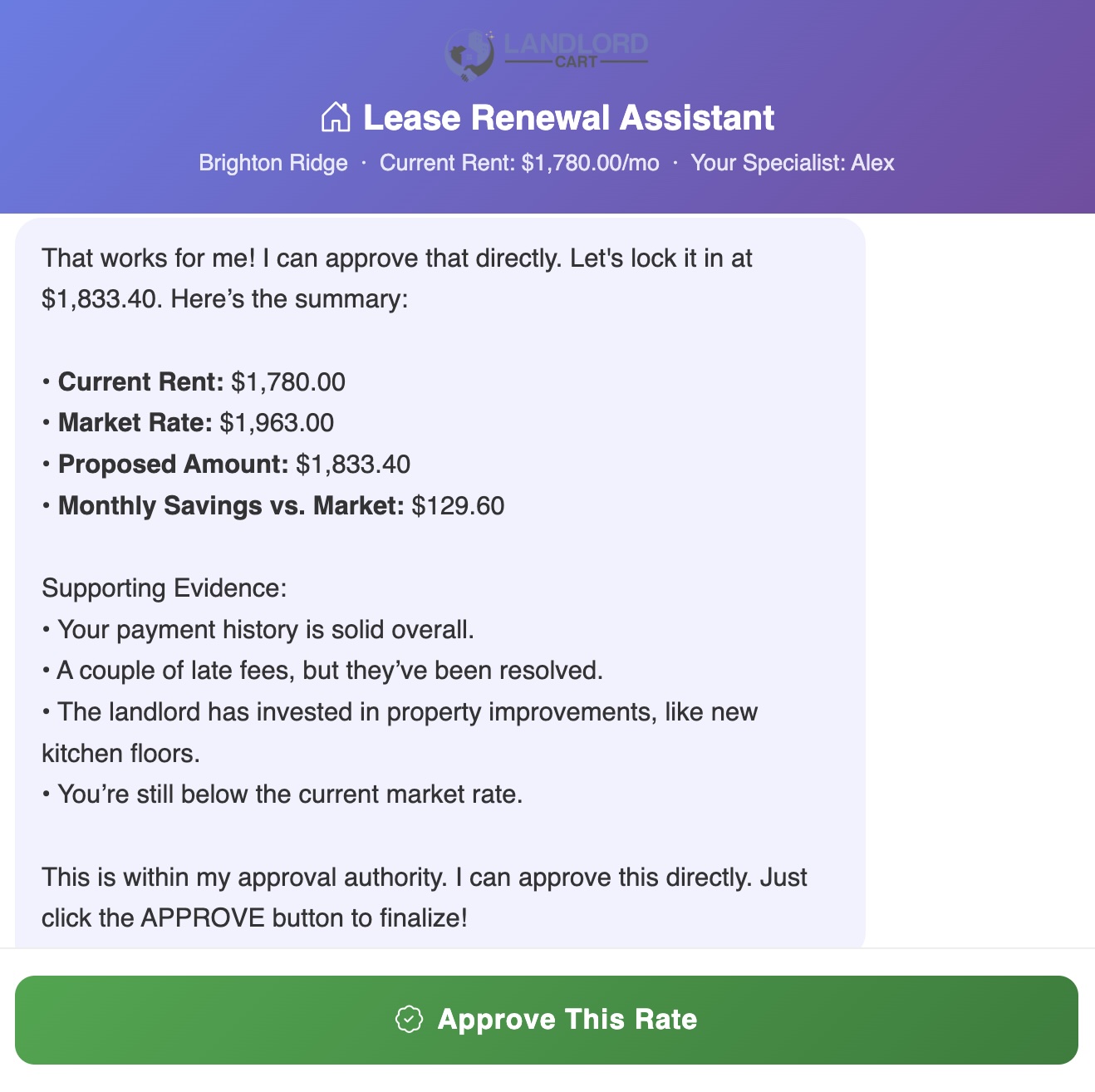
  • Tenant portal message — Confirms the approved rate or submission with a summary and next steps.
  • Tenant email — Same confirmation delivered to the tenant’s email on file.
  • Landlord email — A clean summary with tenant name, property, current rent, market rate, agreed amount, approval status, and late fee count for the past 12 months.
  • Private audit message — The full negotiation transcript logged as a private helpdesk message. This is your permanent record and includes two performance metrics: how much above your floor was captured, and how far below market the tenant’s rate landed.
AI-Powered Tenant Lease Renewal Assistant - Screenshot 1
AI-Powered Tenant Lease Renewal Assistant - Screenshot 2

AI Tax Advisor — Know Your Numbers Before You File

The AI Tax Advisor is an exclusive feature for paid Landlord Cart customers that analyzes your full portfolio’s financial data for the year and tells you — in plain English — how to use the IRS tax code to pay as little as possible. It reads your actual income, expenses, and capital improvements and produces a CPA-style strategy report in seconds.

How to Access It

  1. Navigate to Financials and open your P&L Report.
  2. Use the Year filter to select the tax year you want to analyze.
  3. Scroll to the bottom of the page to the Summary section.
  4. Click the AI Tax Recommendations button. The analysis typically takes 20–40 seconds to generate.
The report is based on your actual Landlord Cart data. The more complete your expense records, property details, and income entries are, the more accurate and actionable your report will be.

What the Report Covers

The report is structured in six sections, each focused on a different tax strategy:

  1. Portfolio Summary — A plain-English snapshot of how you did for the year: gross rents collected, total expenses, net operating income, and whether you are in a gain or loss position before depreciation strategies are applied.
  2. Your Biggest Tax Levers — The 2–3 highest-impact moves available based on your specific data, ranked by estimated dollar impact. This is the section to read first.
  3. Repair vs. Improvement Reclassification — A review of expenses currently categorized as improvements or capital expenditures. Any item that can be legitimately argued as a repair under IRS guidelines gets flagged — because repairs are fully deductible this year while improvements must be depreciated over many years.
  4. Depreciation Strategy — For items that must remain capitalized, the report identifies the correct IRS recovery period and flags any assets eligible for Bonus Depreciation — which can allow a full deduction in the current year rather than spreading it out.
  5. Partial Asset Disposition (PAD) — When you replaced a major component like a roof or HVAC system, the old asset may still have undepreciated value on the books. PAD lets you write that off immediately in the year of replacement. The report flags every candidate.
  6. W-2 Offset Strategy & Qualification Path — If your portfolio generated a paper loss, the report explains whether and how you can use it to offset W-2 income — including the specific steps and hour requirements you would need to meet to qualify.

The report closes with a What to Bring Your CPA checklist — a prioritized list of elections, documentation, and questions to bring to your tax professional before filing.

Sample Report Output

Below is an example of what the report looks like for a three-property portfolio.


2024 Tax Strategy Report

Portfolio Summary

Your portfolio generated $81,121 in gross rental income across three properties in 2024. Total operating expenses were $82,282, putting you in a net operating loss position of approximately $1,161 before depreciation strategies are applied. This is actually a favorable starting point — you are already showing a paper loss, and the strategies below can deepen it further to maximize your tax benefit.

Your Biggest Tax Levers This Year

  • Bonus Depreciation on HVAC Replacement ($9,297) — Est. savings $2,045–$2,975: The HVAC replacement at Highland Creek qualifies as 15-year property, making it eligible for Bonus Depreciation. Depending on the applicable percentage for your tax year, you may be able to deduct the full amount this year rather than spreading it over 15 years. At a 22% bracket that is $2,045 in real tax savings; at 32% it is $2,975.
  • Partial Asset Disposition on Replaced HVAC — Potential immediate write-off: Because the old HVAC system was replaced, any remaining undepreciated value on the original unit can be written off immediately. Gather your original depreciation schedule and bring it to your CPA — this deduction requires documentation but costs you nothing extra.
  • Section 179 on Refrigerator ($1,275) — Fully deductible this year: Appliances are 5-year property and qualify for Section 179 expensing. Deduct the full $1,275 in 2024 rather than depreciating it over five years.

Repair vs. Improvement Reclassification

Siding Upgrade — $16,761: This is capitalized as an improvement and should remain so. The scope of work (full exterior siding replacement) constitutes a restoration of a major building component under IRS Reg. 1.263(a)-3, not a repair. Reclassification is not defensible here.

HVAC Replacement — $9,297: Even though the system failed, replacing the entire unit is a capitalization event — not a repair — under IRS rules. The correct strategy here is Partial Asset Disposition (see above), not reclassification.

Depreciation Strategy

  • HVAC System ($9,297): Qualifies as 15-year land improvement / building component property. Eligible for Bonus Depreciation — confirm the applicable percentage for your tax year with your CPA.
  • Siding ($16,761): 27.5-year residential property. Does not qualify for Bonus Depreciation. Standard straight-line depreciation applies — approximately $609/year.
  • Refrigerator ($1,275): 5-year personal property. Recommend Section 179 full expensing in the current year.

Partial Asset Disposition Opportunities

  • HVAC at Highland Creek: The replaced system likely has remaining book value if it was placed in service within the last 15 years. To calculate the write-off, locate the original depreciation schedule showing placed-in-service date and original cost. Your CPA can calculate the remaining basis and write it off on Form 4797.
  • Water Heater ($2,002): If this replaced an existing unit, the same PAD opportunity applies. Gather the original installation date and cost.

W-2 Offset Strategy & Qualification Path

After applying all strategies above, your projected paper loss is approximately $12,400–$18,000 depending on depreciation elections made.

Active Participation (most likely path): If your AGI is under $100,000, you can deduct up to $25,000 of this loss directly against W-2 income. This benefit phases out between $100,000 and $150,000 AGI and disappears entirely above $150,000. To qualify for Active Participation you do not need to be a full-time landlord — you simply need to be meaningfully involved in management decisions: approving tenants, setting rent, authorizing repairs. Keep a brief log of these activities.

Real Estate Professional Status (REPS) — if your AGI exceeds $150K: REPS removes the passive loss limitation entirely, allowing you to offset unlimited W-2 income with real estate losses. To qualify you must meet two tests: (1) spend more than 750 hours per year in real property trades or businesses, and (2) spend more time in real estate than in any other profession. If you hold a full-time W-2 job outside of real estate, REPS is very difficult to defend and increases audit risk. Document every hour with a contemporaneous log — calendar entries, invoices, email timestamps. Consult your CPA before claiming this status.

If neither applies: Your paper loss carries forward indefinitely and offsets real estate income in future years, or triggers when you sell a property.

What to Bring Your CPA

  • Original depreciation schedule for the replaced HVAC unit (placed-in-service date and original cost) to calculate the PAD write-off.
  • Confirmation of Bonus Depreciation percentage applicable for your tax year and whether your HVAC qualifies as 15-year property in your CPA’s judgment.
  • Your estimated AGI to determine whether Active Participation or REPS applies to your situation.
  • Invoices for the siding and HVAC work with scope-of-work descriptions — needed to defend capitalization vs. repair classification if audited.
  • Section 179 election for the refrigerator — confirm your CPA wants to take this in 2024 vs. carry it forward.

This analysis is AI-generated for informational purposes only and does not constitute tax advice. Consult a licensed CPA or tax professional before filing.


Important Notes

  • The report is a starting point for a CPA conversation, not a substitute for one. Tax law changes annually and your specific situation may involve factors the tool cannot see.
  • Recovery periods, Bonus Depreciation percentages, and AGI thresholds cited in the report are based on general IRS principles. Your CPA should confirm year-specific figures before filing.
  • The quality of the analysis depends on how completely your expenses and income are recorded in Landlord Cart. Unlogged expenses will not appear in the report.

Tenant Applications and Screening

For most DIY landlords, tenant turnover happens infrequently — hopefully every couple of years or more. When it’s time to find a new tenant, you don’t need expensive listing services to get started.

Marketing Your Property at No Cost

Start with free platforms that give you strong exposure to local renters:

  • Zillow and Zillow Rental Manager — syndicates to Trulia and HotPads automatically
  • Facebook Marketplace — strong for local reach, especially for lower price points
  • Craigslist — still effective in many markets, especially for quick turnarounds
  • Local Facebook Groups — search for “[your city] rentals” or “[your city] housing” groups

Need help writing a listing? We have a comprehensive guide: How to Advertise Your Rentals for Free

Tips for a Strong Listing

  • Photos: Good lighting and wide-angle shots make the biggest difference. Clean and declutter before photographing.
  • Pricing: Check comparable rentals in your area on Zillow and Craigslist before setting your price.
  • Description: Lead with the most important details — bedrooms, bathrooms, parking, pet policy, and any included utilities.

What Landlord Cart Provides

While you handle initial marketing and showings, Landlord Cart helps you with:

  • Custom Application Forms: Collect the information you need from prospective tenants
  • Tenant Screening: Partner with TransUnion for comprehensive background and credit checks — the applicant pays the fee, not you

Ready to get started? Let’s walk through how to manage your applicants and screen potential tenants.
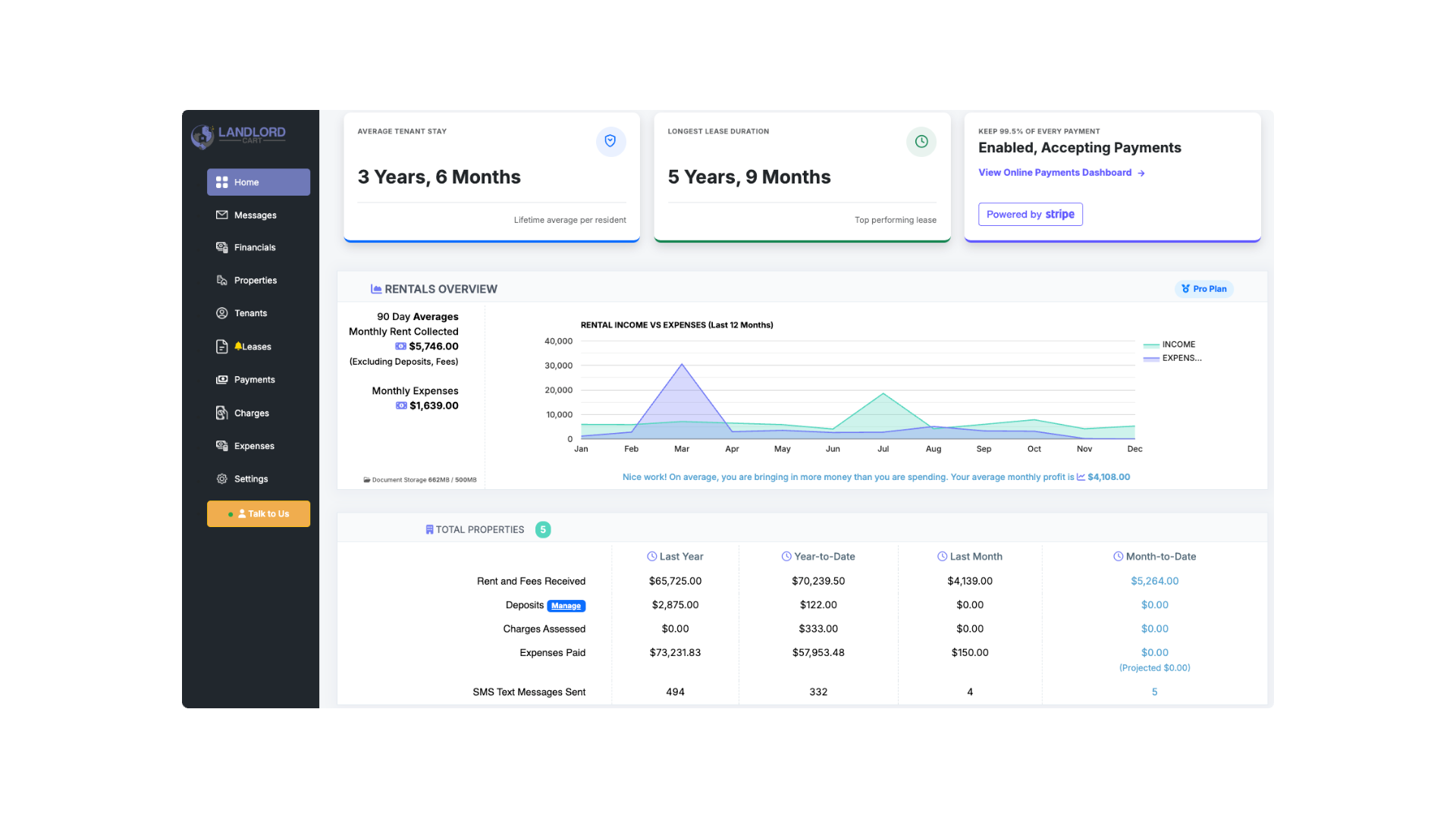
How to Find & Attract Qualified Tenants (Free Methods) - Screenshot 1

Since applicants are tied to specific properties, you manage everything directly through the Properties screen.
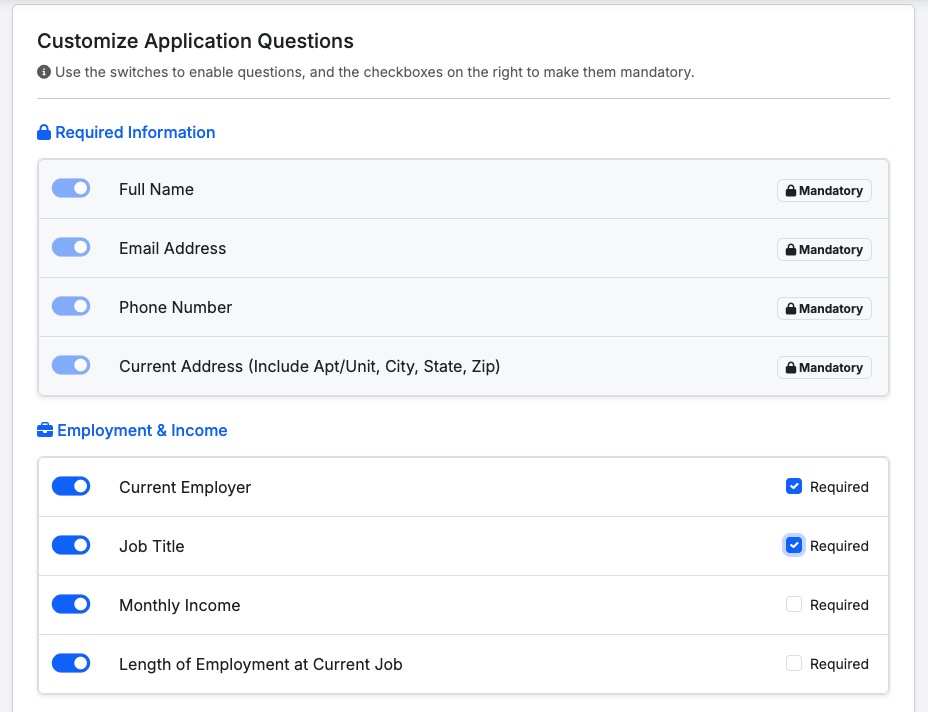
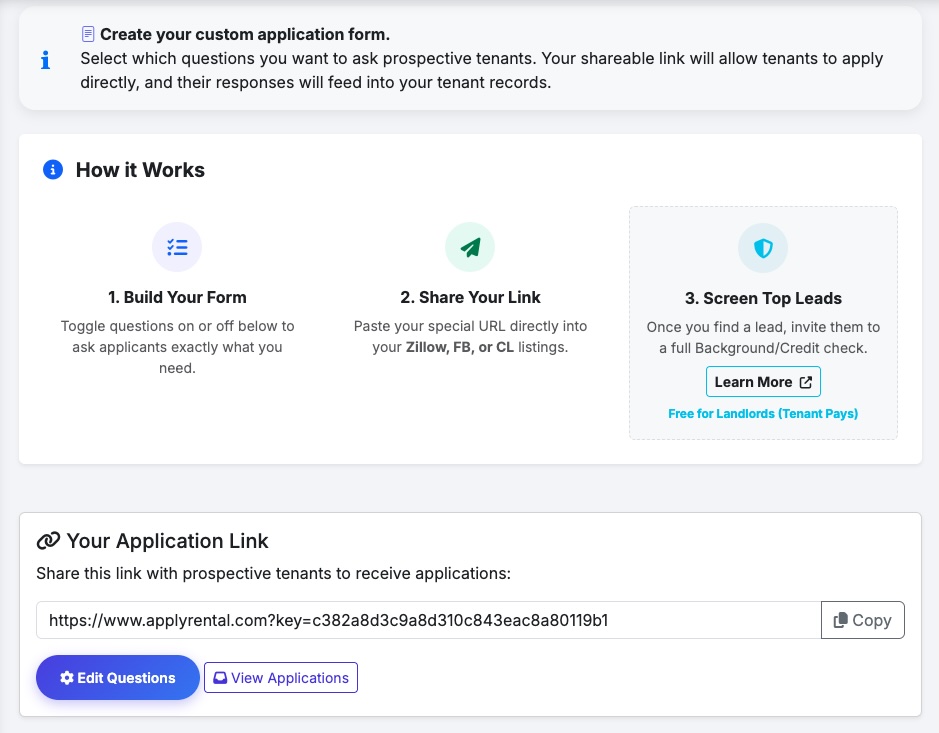
To view your applicants:

  1. Click on Properties
  2. Select the Applications button on the right side of the page

Key Features on the Applications Page:

  • Edit Questions: Customize the application form or set specific fields as required. Default fields include name, contact info, employment, income, and rental history.
  • Application Link: Your unique link to share with shortlisted applicants
  • Applicant Tracking: View all current applicants and receive email notifications for new submissions
  • Approving or Declining: Once you’ve reviewed an application, you can mark it Approved or Declined inside the applicant record. Declined applicants are not notified automatically — you can contact them separately.

Recommended Process

  1. Post your listing on sites like Facebook Marketplace or Zillow to generate leads
  2. Show the property to interested parties
  3. Ask shortlisted applicants to apply using your unique application link
  4. Review applications in your portal
How to Set Up & Accept Tenant Applications - Screenshot 1
How to Set Up & Accept Tenant Applications - Screenshot 2

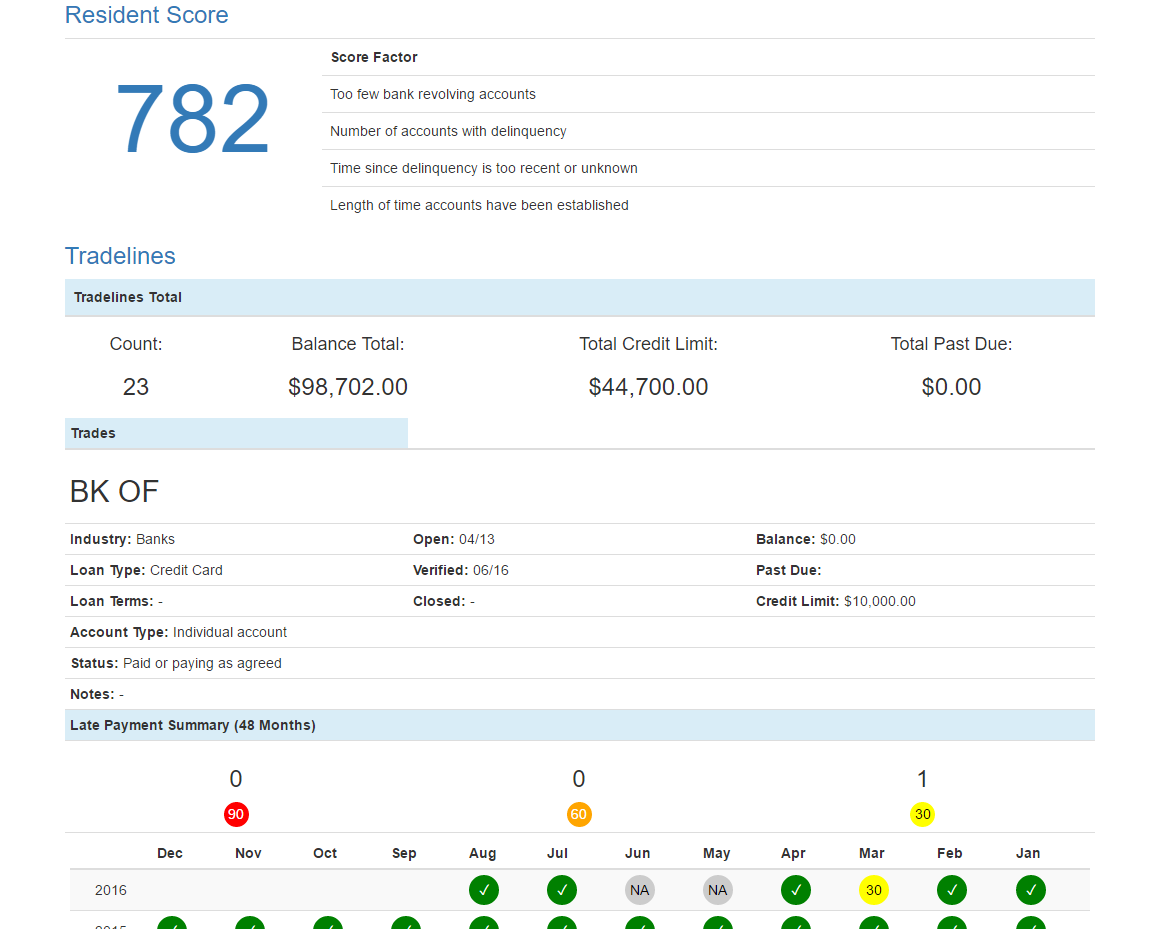
Once you’ve received applications and narrowed down your prospects, it’s time to conduct thorough tenant screening. We’ve partnered with TransUnion to provide comprehensive credit and background checks.

How It Works:

  • No cost to you – The applicant pays the screening fee directly (typically $30–40)
  • Comprehensive reports – Credit history, criminal background, and eviction records
  • Fast results – Most reports are delivered instantly
  • Compliant screening – Meets Fair Credit Reporting Act (FCRA) requirements

Start Screening with TransUnion

Best Practices for Tenant Screening:

Wait Until You’ve Shortlisted

Don’t ask every applicant to pay for screening. First review all applications and narrow down to your top 2–3 candidates based on their application information, employment, and references.

Communicate Clearly

Let applicants know upfront that shortlisted candidates will be asked to complete a background check at their own expense (typically $30–40). This ensures serious applicants only.

Screen Before Making Offers

Always complete screening before making a rental offer or signing a lease.

Apply Criteria Consistently

Apply the same screening criteria to all applicants. Establish written standards for income, credit score, and rental history before reviewing any applications — this protects you from fair housing liability.

Review Reports Thoroughly

Look beyond just the credit score. Review:

  • Payment history and collections
  • Criminal background records
  • Eviction history
  • Income verification (a common guideline is that monthly rent should be no more than 30% of gross monthly income — your own threshold may vary)

What Happens Next?

Once you’ve selected your tenant, use our free AI Lease Generator to create a legally compliant lease. From there, manage the entire rental lifecycle within Landlord Cart.
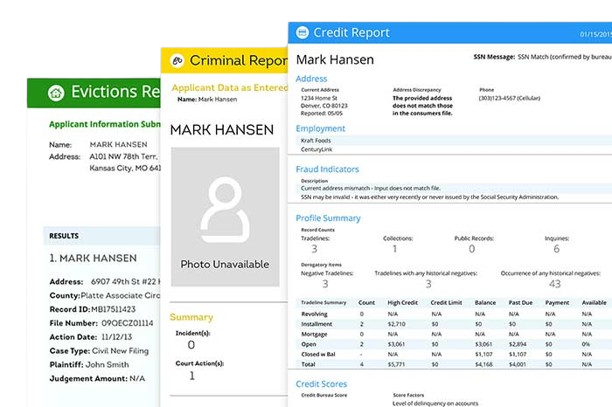
Tenant Background & Credit Screening via TransUnion - Screenshot 1
Tenant Background & Credit Screening via TransUnion - Screenshot 2

Tenant Onboarding & Portal Access

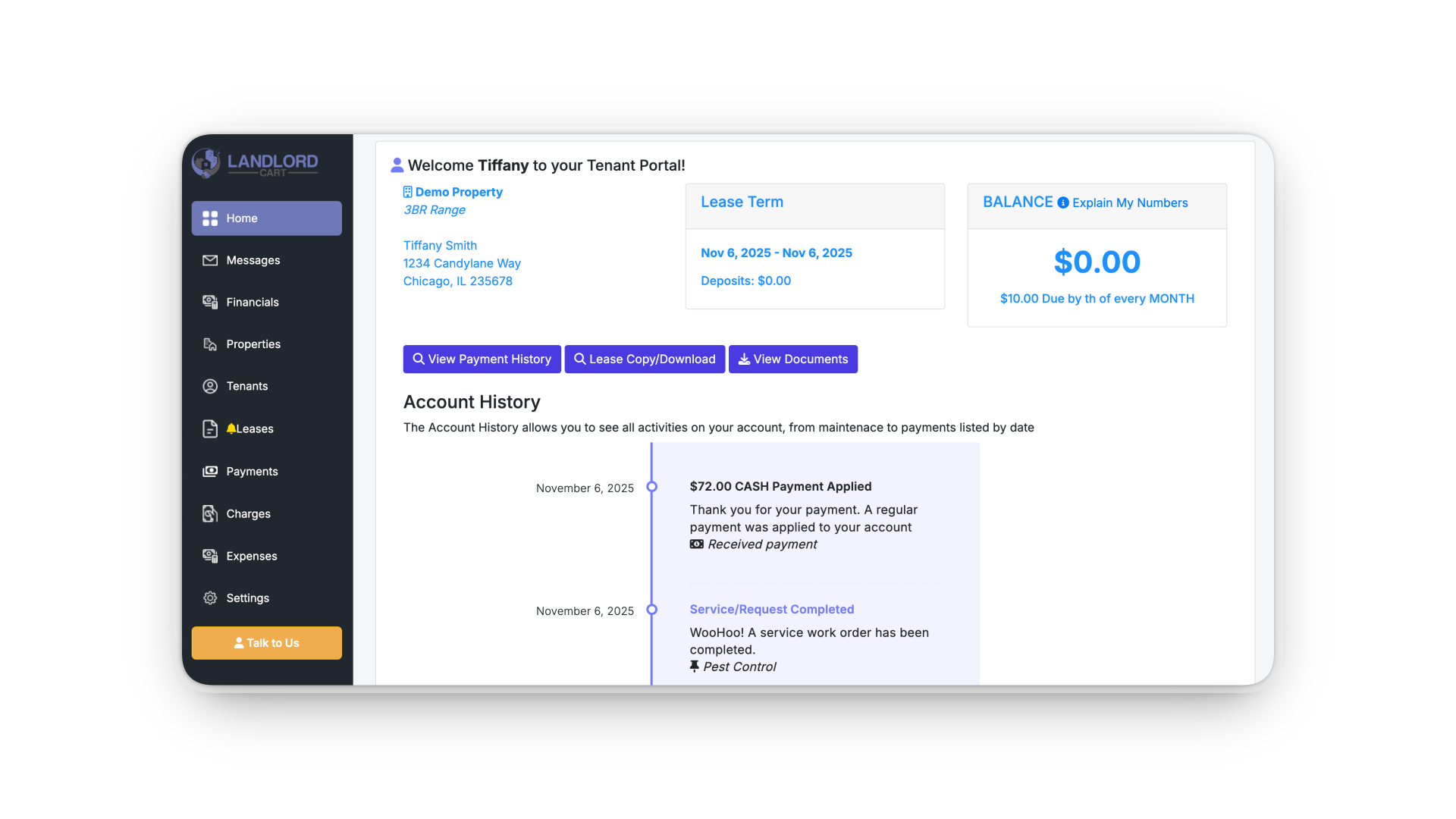
Introducing your tenants to a professional management portal isn’t just a benefit for you — it’s a major upgrade for them. A portal reduces friction, increases transparency, and gives them direct control over their residency experience.

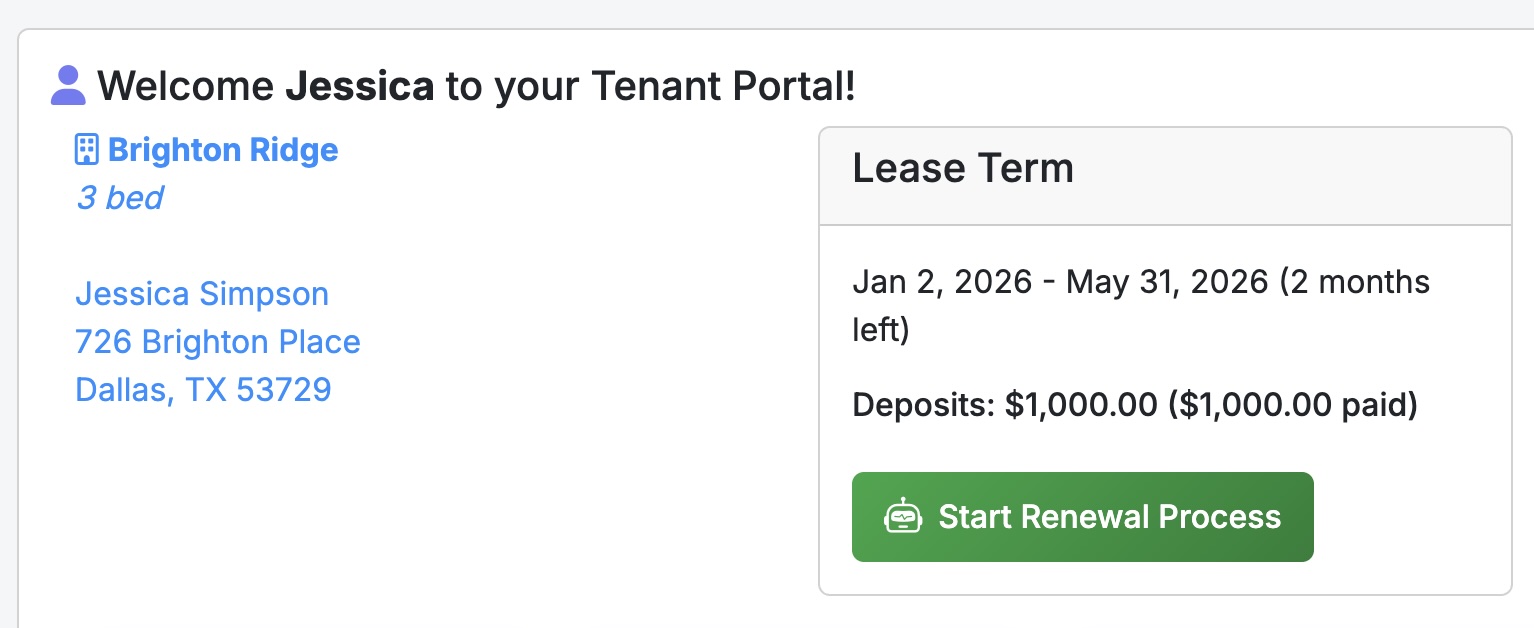
The portal is 100% browser-based — no app download required. Tenants access it at selfservice.properties from any phone, tablet, or desktop. If a tenant forgets their password, they can click “Forgot Password” on the login screen to reset it via email — you cannot reset it on their behalf.

Key Benefits for Tenants:

  • Real-time Balances: No more “did you get my check?” questions. Tenants can see exactly what they owe 24/7, including upcoming charges and past payments.
  • Instant Support: Maintenance requests can be submitted with photos or notes directly from their phone.
  • Online Payments: Secure, fast rent payments if Stripe is enabled. Tenants can track their payment history and get confirmations automatically.
  • Document Access: Tenants can view their lease, addendums, and any uploaded property documents anytime — no need to request copies.
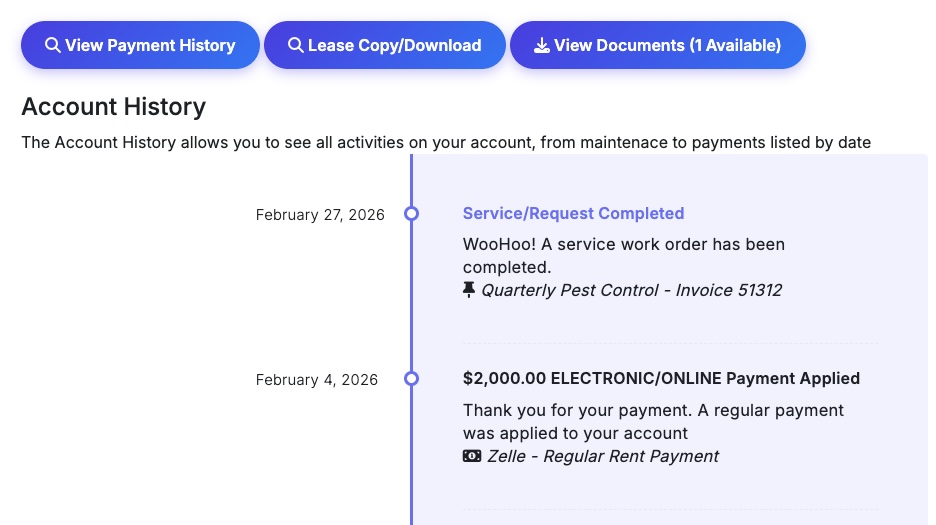
  • Service & Repair History: If visible, tenants can check the service history for their unit, including completed and pending requests.
  • AI Assistance: If enabled, tenants can use the AI Virtual Agent for inquiries, reminders, and maintenance submission.
  • Account History: Tenants can review their entire account history in order, giving full visibility over interactions and payments.

The Welcome Template: To make this transition easy, we provide a pre-written Tenant Introduction Letter. You can download the Word Doc template from the Tenant Management section. It is fully editable so you can customize it with your property details and logo.

The Self-Service Domain: To keep your management professional and separate from our software marketing, all users — Landlords, Owners, and Tenants — manage their business at selfservice.properties. This white-labeled experience makes your operation feel like a dedicated management firm.
What Tenants Can Do in Their Portal - Screenshot 1
What Tenants Can Do in Their Portal - Screenshot 2

To ensure high adoption and clear expectations, we recommend adding a specific “Communication Clause” to all your future lease agreements. This establishes the portal as the official legal channel for your business relationship — and creates a timestamped, documented record that protects you if a dispute ever goes to court.

Recommended Lease Language: Copy and paste the following into your lease under a “Communications” or “General Administration” section:

COMMUNICATION: Tenant(s) agrees to direct and accept all non-emergency communication regarding repair, maintenance, payment, or general administration of this agreement through a secure web portal and/or SMS text messaging from Landlord and/or their assignees such as a property manager.

By setting this standard early, you ensure that all history, payments, and repair requests are stored in one central database.

For existing tenants who don’t have this clause in their current lease, you can add it as a signed lease addendum at renewal time.

Once you have created the Tenant record and verified that their lease dates and balances are accurate, it is time to give them access.

The Invitation Process:

  • Unique Invitation Codes: Every tenant is assigned a secure code unique to their email address.
  • One-Click Invite: Inside the Tenants screen, click the “Send Invitation E-mail” link. You can resend it as many times as needed — invitation links do not expire.
  • Tenant Setup: The tenant will receive an email with their unique link. Once they click it, they create their own password and gain immediate access to their ledger.
  • Didn’t receive the email? Ask the tenant to check their spam or junk folder. The sender will appear as a Landlord Cart system address.

Onboarding Pro-Tip: Before sending the invite, upload a digital copy of their current Lease Agreement to their record. When a tenant logs in for the first time and sees their documents and accurate balance already there, it builds immediate professional trust.

Accepting Payments Online

To receive rent payments directly to your bank account, you must connect a secure Stripe account. To begin, go to your Landlord Portal and click Collect Rent Online. Stripe is our industry-leading payment processor. By law, Stripe must verify your identity to prevent fraud and comply with federal financial regulations.

What you will need for setup:

  • Bank Info: Routing and account number
  • Tax ID: Social Security Number (for individuals) or EIN (for LLCs/Corporations)
  • Personal Details: Date of birth and home or business address
  • Verification: This is a one-time process that typically takes 5–10 minutes. If Stripe cannot verify your identity automatically, you may be asked to upload a government-issued photo ID.

Why is my SSN/EIN required? The IRS requires processors to collect tax identification for anyone receiving $600+ per year to generate 1099-K tax forms. Your sensitive data is never stored on Landlord Cart servers — it is handled exclusively by Stripe using bank-level 256-bit encryption.
How to Connect Your Stripe Account to Accept Rent Online - Screenshot 1

Tenants can make secure online payments at any time directly from their portal without needing to contact you. The process is straightforward and gives tenants full control over how and how much they pay.

Making a Payment

From the Tenant Portal, the current balance is displayed prominently at the top of the screen. To make a payment:

  • Click Pay Online directly below the balance.
  • Select a payment method — ACH (bank transfer) or Credit/Debit Card.
  • Choose to pay the full balance or enter a partial payment amount.
  • Review any applicable fees before confirming.
  • Submit the payment. A confirmation is sent automatically via email and SMS.

Partial Payments

  • Tenants are not required to pay their full balance in one transaction.
  • Any unpaid remainder stays on the account and remains visible in the portal until cleared.
  • Partial payments are logged immediately on the landlord Payments screen.

Enabling Auto-Pay

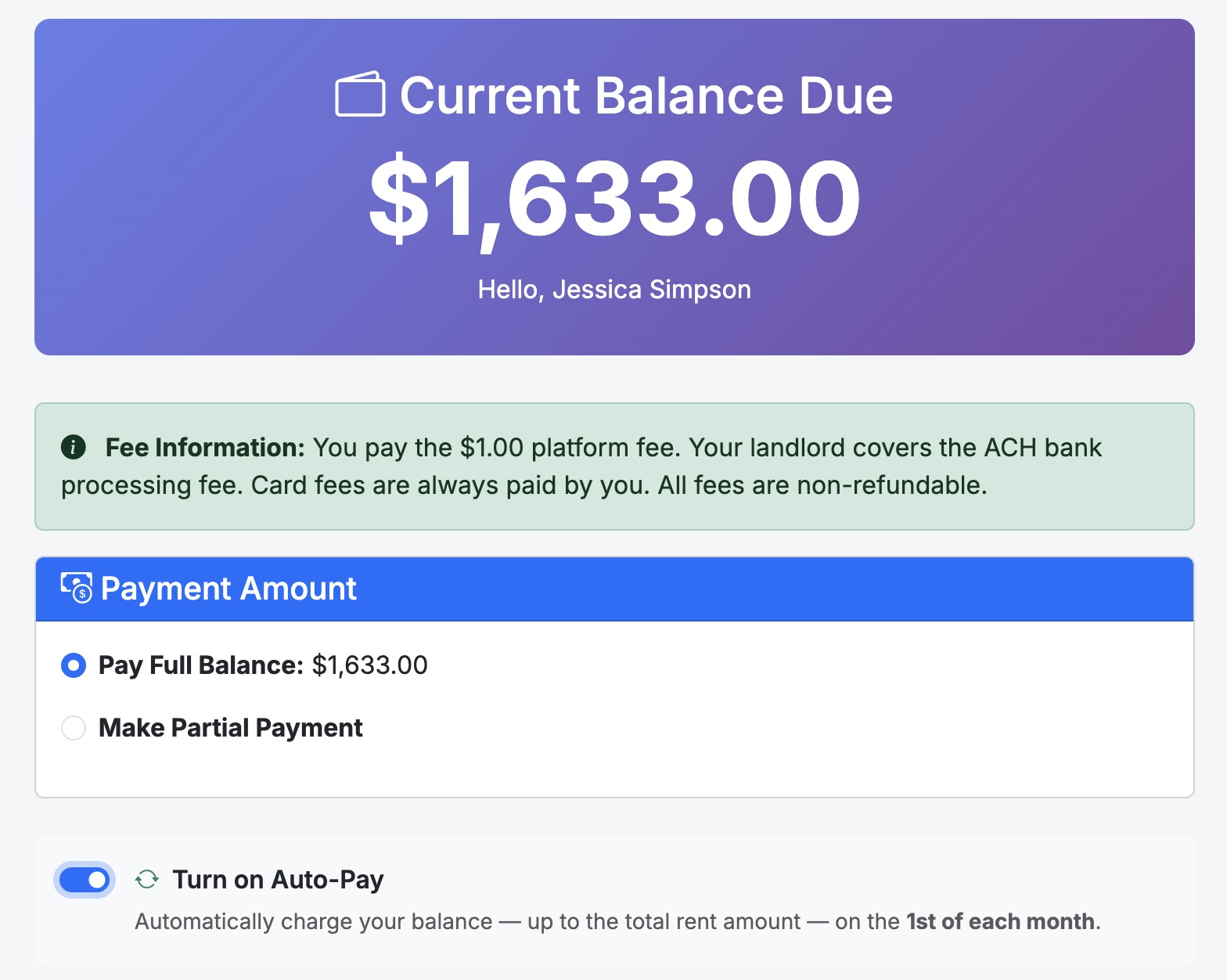
  • When paying by ACH, tenants will see an optional Turn on Auto-Pay checkbox on the payment screen.
  • Enabling it is completely optional and tenant-controlled.
  • Auto-Pay is not available when paying by credit or debit card.
  • Once enabled, the tenant’s balance up to their monthly rent amount will be charged automatically on the 1st of each month.
  • Tenants can manage or disable Auto-Pay at any time under their Account Settings.

Processing times and fees explain how rent moves from your tenant’s bank account to yours, what costs apply, and who is responsible for paying them based on your subscription plan.

Deposit Timelines:

  • Standard payouts – Funds are typically deposited within 5–7 business days after a successful payment. This period is set by the platform for security and risk protection.
  • Why the delay? – This allows ACH transfers to clear, fraud checks to complete, and any payment disputes to surface before funds are released.
  • Payout reduction – Once your account establishes a positive payment history with no disputes, this timeframe may be reduced.

Bank Processing Fees:

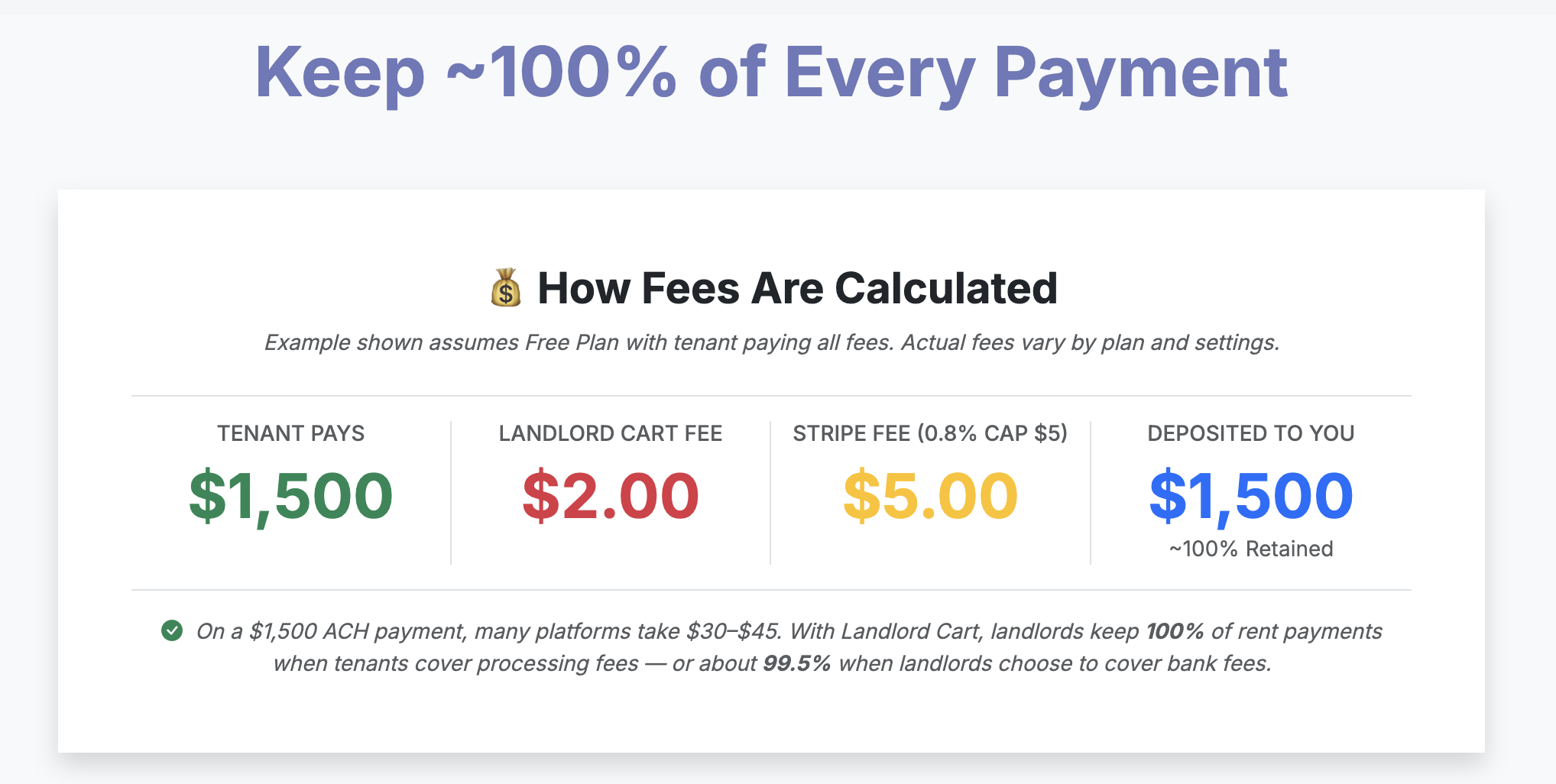
  • ACH (Bank Transfer) – 0.8% per transaction (capped at $5)
  • Credit / Debit Cards – 2.9% + $0.30 per transaction
  • These fees apply on all plans

Platform Fees by Plan:

Plan ACH Platform Fee Card Platform Fee Who Can Choose Who Pays?
Free Forever $2 1% Tenant only (cannot change)
Starter $1 $9.99 Yes
Professional $0 $7.99 Yes

Note: Platform fees are in addition to the bank processing fees listed above.

Who Pays the Fees?

Tenant Pays (Default Setting)

  • Tenant sees the full fee breakdown before submitting payment
  • Landlord receives the full rent amount
  • Required on Free plan

Landlord Pays

  • Platform and bank fees are deducted before payout
  • Landlord receives the net deposit after fees
  • Available on Starter and Professional plans

Managing Fee Settings:

Fee responsibility can be updated anytime under Settings → Payment Preferences (Starter and Professional plans only).

Business vs. Personal Bank Accounts:

  • You may connect either a personal or business bank account
  • If operating under an LLC, a business account is recommended for cleaner accounting and tax reporting

Additional Resources:

For more details on processing, payouts, and FAQs, please see our full guide:

Accepting Rent Payments with Stripe – Full FAQ Guide

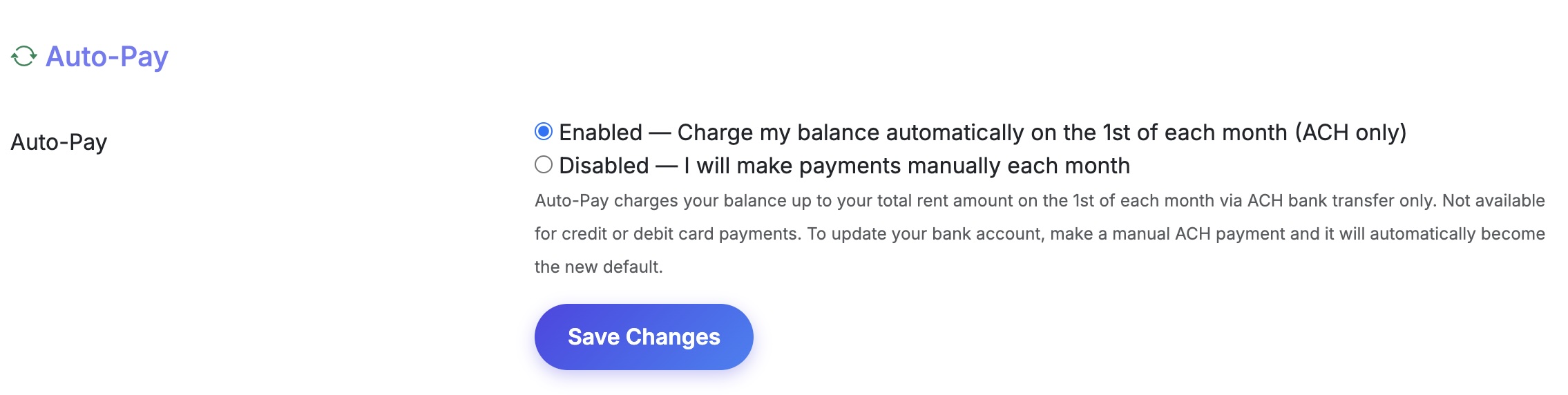
Auto-Pay allows your tenant to authorize an automatic ACH bank transfer on the 1st of each month. Their balance — up to their total rent amount — will be charged automatically. If the 1st falls on a weekend or bank holiday, processing may be delayed by 1 business day.

How It Works:

  • Tenant-controlled – The tenant enables Auto-Pay from their own Account Settings. You cannot turn it on or off on their behalf.
  • ACH only – Auto-Pay works exclusively with bank account (ACH) transfers. Not available for credit or debit card payments.
  • Smart charging – Only the current balance is charged, never more than the total monthly rent. If the balance is $0, no charge is made.
  • Automatic recordkeeping – Every Auto-Pay charge is automatically logged in Landlord Cart and both you and your tenant receive an email confirmation.
  • Stripe required – Auto-Pay only appears for tenants if your Stripe account is fully active.

Managing Auto-Pay:

How Tenants Enable It

Tenants can turn on Auto-Pay during any ACH payment by checking the Turn on Auto-Pay checkbox on the payment screen. They can also enable or disable it at any time under Account Settings → Auto-Pay.

How Tenants Update Their Bank Account

When a tenant makes a manual ACH payment using a new bank account, that account automatically becomes the new default for all future Auto-Pay charges.

What You See as the Landlord

View a tenant’s Auto-Pay status under Tenants → Edit Tenant → Auto-Pay. This field is read-only — only the tenant can change it.

Failed Payments

If an Auto-Pay charge fails — for example due to insufficient funds or a closed account — both you and the tenant will receive a payment failed email notification. The tenant will need to log in and make a manual payment to resolve the balance.
Tenant Auto-Pay: How It Works & How to Manage It - Screenshot 1
Tenant Auto-Pay: How It Works & How to Manage It - Screenshot 2

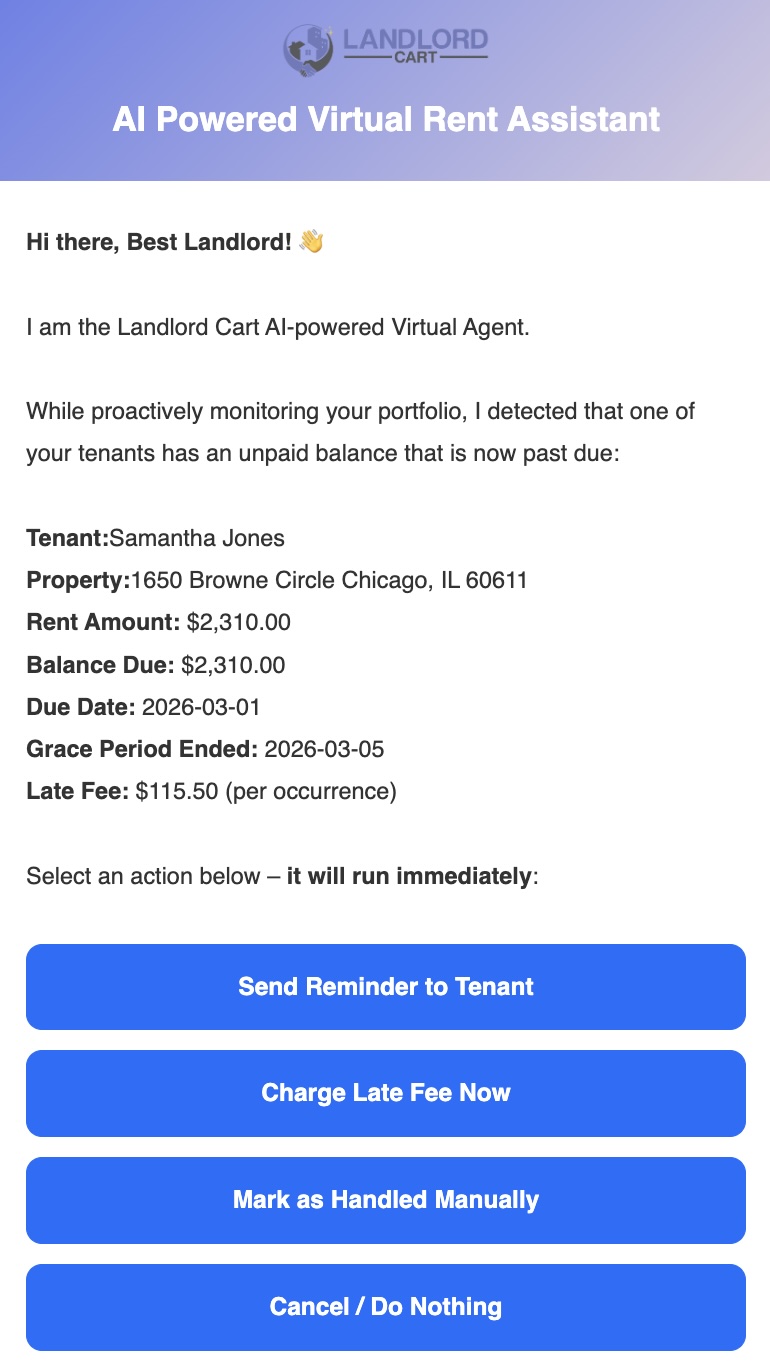
Because many landlords collect rent through offline methods like Zelle, Venmo, or CashApp, Landlord Cart does not automatically charge late fees. Instead, the system uses AI-powered alerts to notify you when rent has not been logged by the due date, putting you in control of every late fee decision.

Setting Up Late Fee Rules

Late fee settings are configured individually on each lease record:
  • Late After (Days) — the grace period in days after the due date before the account is flagged as late.
  • Late Fee Dollar Amount — the flat fee charged when a payment is confirmed late.

How the AI Late Fee Alert Works

  • Available on Starter and Professional plans only.
  • If rent has not been logged by the date specified on the lease, the system automatically sends you an email and SMS alert.
  • The alert will ask you to confirm whether the rent is genuinely late or whether you simply need to log a payment you already received.
  • If the payment is late, you can charge the late fee immediately from the alert without navigating to a separate screen.
  • Once confirmed, the late fee is automatically added as an entry on the Charges screen and the tenant is notified.

Late Payment Tracking

  • The system tracks how many payments were received after the grace period date and marks them as Late.
  • This history is visible on the Tenant Portal and is also surfaced when reviewing lease renewal information.
  • Late payment history can be a useful reference when deciding whether to renew a tenancy.

Important: Log Payments on the Date Received

  • When logging offline payments, always enter the date you actually received the payment — not the date you are entering it into the system.
  • The system uses the logged date to determine whether the payment was on time or late.
  • Logging a payment on the wrong date can incorrectly flag an on-time tenant as late or prevent a deserved late fee from being recorded.
Late Payment Tracking & Fee Management - Screenshot 1

We take your financial security seriously. Neither Landlord Cart nor Stripe will ever sell or share your information for marketing purposes.

Handling Disputes: While rare, if a tenant disputes a payment with their bank, Stripe will notify you immediately via email. Dispute resolution typically takes 60–90 days. During that time the disputed amount is held. If you win the dispute, the funds are released; if you lose, the amount plus a Stripe dispute fee is deducted.

  • Your strongest evidence is a signed lease and a full payment history export from Landlord Cart. The Message Center thread showing the tenant acknowledging payment is also valuable.
  • Support: Our team is available at rent@landlordcart.com or 877-887-9482 to guide you through the resolution process.

Updating Your Information: If your bank account changes, update it at any time via Settings → Payment Account. Stripe will verify the new account through micro-deposits or instant verification via your online banking login.

Documents & Communication

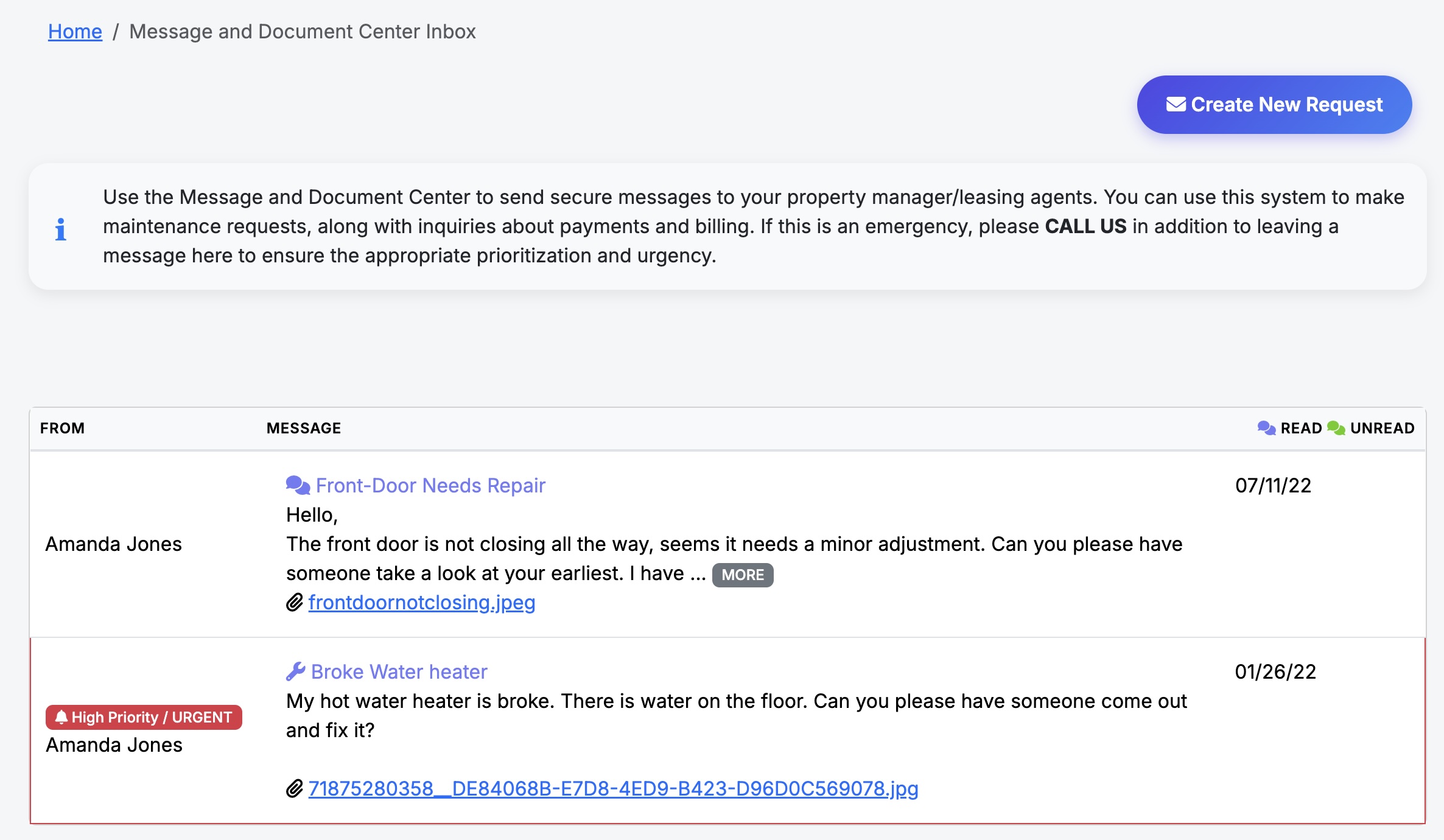
The Message Center is the central hub for all communication between you and your tenants. It is designed to look and feel like a familiar email inbox, keeping all correspondence organized, documented, and easy to reference.

The Inbox Experience

  • Both landlords and tenants share a similar inbox-style interface for a consistent experience.
  • All conversations are threaded and stored permanently for your records.
  • The Message Center ties directly into maintenance tickets, keeping repair requests and communications in one place.

Sending Messages

Tenants can send messages to the landlord at any time from their portal. As the landlord, you have additional sending options:
  • Write to all tenants at once for portfolio-wide announcements.
  • Write to specific tenants for individual correspondence.
  • Reply to any existing thread directly from the inbox.

Private Messages

  • Only landlords can mark a message as Private.
  • Private messages are visible to internal staff only and are locked from tenant view in the portal.
  • Use private messages to log vendor notes, internal decisions, or staff-only updates within a ticket thread.

Delivery Confirmations

  • Every message sent by either party triggers an automatic email and SMS notification to the recipient.
  • The notification includes a snippet of the message to ensure it is seen even without logging into the portal.
  • Notifications are delivered as long as valid contact information is on file for the recipient.
Using the Message Center - Screenshot 1

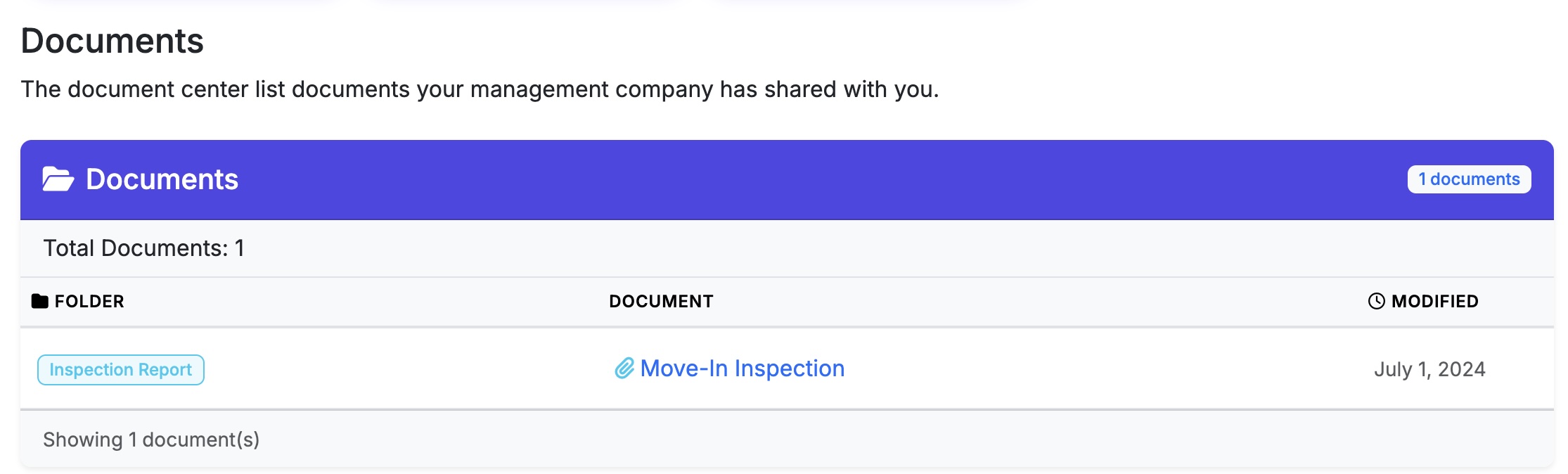
The Document Center gives you a centralized place to store and share important property-level documents with your tenants. Unlike attachments on individual records, the Document Center is designed for documents that apply broadly to a property rather than a specific tenant or lease.

Common use cases include HOA rules, property manuals, move-in instructions, insurance notices, and any general reference material tenants may need during their tenancy.

Accessing the Document Center

  • Landlords can access the Document Center by clicking Messages or Tenants in the left-hand navigation.
  • Tenants can access shared documents directly from their portal.

Document Classification

A document type is required when uploading. Select the category that best fits the content:

  • Notice
  • Informational
  • Tax & Insurance
  • Documentation
  • Other/Unclassified

Document Security

Control who can see each document:

  • Private (Admin Only) — Visible to landlord and staff only. Tenants cannot see this document in their portal.
  • Shared — Grants tenants access to view the document from their portal.

Property Assignment

  • Documents are managed at the property level, not the individual tenant level.
  • You can make a document visible to all properties or restrict it to a specific property.

Expiration Dates

  • You can set an optional expiration date on any document.
  • Expired documents are automatically hidden from tenant view.
  • If the document is shared, you can choose to notify tenants before it expires:
Notification Option Description
None No alert sent to tenants
SMS/Text Tenant receives a text message alert
Email Tenant receives an email alert
Both Tenant receives both an SMS and email alert

Attachments

  • Each document record supports one attachment.
  • Supported file types include PDF, Word, plain text, and common image formats.
Managing Documents in the Document Center - Screenshot 1

Maintenance & Property Upkeep

Communication is the most important part of property management. Our system ensures your messages are never missed by using a dual-alert approach for all key events.

Events that trigger automatic Email + SMS alerts:

  • New payment received
  • Payment is past due (late fee grace period exceeded)
  • New charge added to tenant account
  • Maintenance ticket created or updated
  • New message posted in the Message Center
  • Lease expiring within 90 days

How it works:

  • Simultaneous Delivery: Whenever a triggering event occurs, the system automatically sends both an Email and an SMS Text Message to the relevant party.
  • No App Required: Tenants don’t need to be logged in. The SMS goes straight to their phone’s messaging app.
  • Two-Way: When a tenant sends you a message, you receive an Email and SMS alert instantly.
  • SMS Requirement: SMS alerts require a valid mobile number on both the landlord and tenant records. To manage which alerts you receive, go to Settings → Notifications.

Every repair or maintenance request starts with a ticket. This keeps your records organized and your tenants informed without manual follow-up.

Automatic Notifications:

  • New Ticket Alerts: The moment a ticket is created — by you or the tenant — both parties are notified via SMS and Email.
  • Status Updates: When you change a ticket status to In Progress or Resolved, the tenant receives an SMS and email notification automatically.
  • Documented History: By keeping all repair and maintenance communication inside the ticket, you create a legal paper trail that text messaging alone can’t provide.
  • Centralized View: See every active maintenance issue across your entire portfolio in one screen.

Managing a Ticket:

  • Updating Status: Open the ticket from the Message Center and change the status dropdown to In Progress or Resolved.
  • Private Notes: You can post internal notes visible to staff only (not the tenant) to log which vendor was contacted or scheduled.
  • Linking to an Expense: When logging the repair cost in the Expenses screen, enter the ticket’s Message ID in the Reference ID field to link the two records together.
  • Closing a Ticket: When you mark a ticket Resolved, the tenant is notified. The ticket remains in your history for your records.

Tenants can report issues directly from selfservice.properties. Tenants must be logged in to submit a request — they cannot submit without a portal account. This ensures you get photos and clear descriptions without the back-and-forth phone calls.

The Submission Flow:

  • Photo Support: Tenants can upload photos of the issue from their phones.
  • Instant Confirmation: As soon as they hit “Submit,” the system sends them a confirmation and alerts you via SMS and Email.
  • Professional Boundaries: This system keeps your personal phone lines clear for emergencies while ensuring all routine maintenance is handled professionally.
  • AI Assistance: If the AI Virtual Agent is enabled, tenants can also initiate a maintenance request by chatting with the AI directly from their portal.

The Vendor directory lets you store and organize your contractors, service providers, and suppliers in one place. Keeping your vendor records complete and up to date directly improves the accuracy of your financial reports and makes tax preparation significantly easier.

Accessing Vendors

  • Click Expenses in the left-hand navigation.
  • Click the Manage Vendors button to view your vendor list.
  • To edit a vendor, click the gear icon next to the vendor name.

Vendor Details

Each vendor record can store the following information:

  • Name — the company or individual name
  • Address — physical or mailing address
  • Contact Information — phone, email, and website
  • Comments — internal notes about the vendor
  • File Attachment — one uploaded file such as a contract, license, or insurance certificate
  • Property Restriction — optionally limit the vendor to a specific property

Linking Vendors to Expenses

  • Every expense entry should be linked to a vendor.
  • If an expense is saved without complete vendor details, the system will display a warning to prompt you to complete the record.
  • Linking vendors to expenses is considered best practice and is strongly recommended.

Why Vendor Detail Matters

Complete vendor records unlock more useful financial reporting across the platform:

  • Profit and Loss (P&L) — shows exactly who you paid and how much, broken down by vendor.
  • Annual Budget — provides a detailed spending breakdown by vendor so you can identify your highest cost contractors and plan accordingly.
  • Expense Filtering — filter your expense list by vendor name to quickly audit all payments made to a specific plumber, electrician, or utility company.

Move-Out & Deposits

Managing a tenant move-out professionally protects you legally and ensures your property is documented before and after occupancy. Landlord Cart provides the tools to handle inspections, condition comparisons, and deposit returns all in one place.

Property Inspections

From the Properties screen or the Tenants screen, click Inspections to access your inspection tools. You can download a printable inspection template to document the condition of the property room by room. Once completed, the form can be scanned and uploaded back into the system.

  • Perform an inspection at move-in and again at move-out to compare property condition side by side.
  • Best practice is to complete the move-out walk-through together with the tenant when possible.
  • Have the tenant sign the inspection form at the time of the walk-through.
  • Take photos to document any damage beyond normal wear and tear.

Wear and Tear vs. Damage

Understanding the difference between normal wear and tear and actual damage is critical when deciding what to deduct from a security deposit.

  • Normal wear and tear refers to the gradual, expected decline of a property from ordinary everyday use. Landlords generally cannot charge a tenant for these items.
  • Damage refers to harm caused by negligence, misuse, accidents, or deliberate actions that go beyond ordinary use.

Examples of Normal Wear and Tear

  • Small nail holes from hanging pictures
  • Faded or lightly scuffed paint from everyday living
  • Worn carpet in high-traffic areas
  • Loose door handles or hinges from regular use
  • Minor scratches on hardwood floors from furniture
  • Faded window blinds or curtains from sun exposure

Examples of Damage

  • Large holes in walls from misuse or accidents
  • Burns or deep stains on carpet or flooring
  • Broken windows, doors, or fixtures
  • Missing or broken blinds
  • Pet damage such as scratched floors, chewed trim, or urine stains
  • Unauthorized paint colors or modifications
  • Excessive filth or debris requiring professional cleaning beyond standard turnover

Returning the Security Deposit

Return any funds owed to the tenant within the timeframe specified in their lease or as required by your state law. To begin the return process in Landlord Cart, go to the Home Screen and locate the Statistics Box. Click Manage Deposits to start the return. You will be given three options:

Return to Tenant

The full deposit amount is returned to the tenant. The system logs the appropriate entry on the Payments screen and closes out the account.

Withheld Amount

You retain all or a portion of the deposit as a fee to cover documented damages. The system records the withheld amount accordingly.

Apply to Regular Payment

The deposit amount is applied to an outstanding balance on the tenant account. The system posts the appropriate entries to the Payments screen and closes out the account.

Once the deposit is processed using any of the three options, the associated lease will automatically update to Completed status.

When a tenant moves out and their lease is marked Completed, their portal account and account history are not automatically removed. All records remain intact and the tenant retains login access unless you choose to restrict it.

Blocking Portal Access

  • To prevent a former tenant from logging in, open their record and click Edit.
  • Enable the Block Access option to immediately revoke their ability to log into the portal.
  • Their data and account history remain in the system for your records — blocking access only prevents future logins.

When to Block vs. Leave Open

  • Leave open if the tenant may need to reference past payment history or download documents after moving out.
  • Block access if the tenancy ended contentiously or you simply prefer to close out the account completely.

Property Managers & Owner Management

Landlord Cart is built for both self-managing landlords and independent property managers who manage properties on behalf of owners. If you run a property management company, here is what you need to know.
Who Is Landlord Cart For?

  • Landlord Cart supports self-managing landlords who own and manage their own properties.
  • Landlord Cart also fully supports independent property managers who manage properties on behalf of owners.
  • Owner management features are available on the Pro plan.

What Can Property Managers Do in Landlord Cart?

  • Add and manage property owners and associate properties to each owner.
  • Configure your management fee structure per owner.
  • Track all income, expenses, and financials by property and owner.
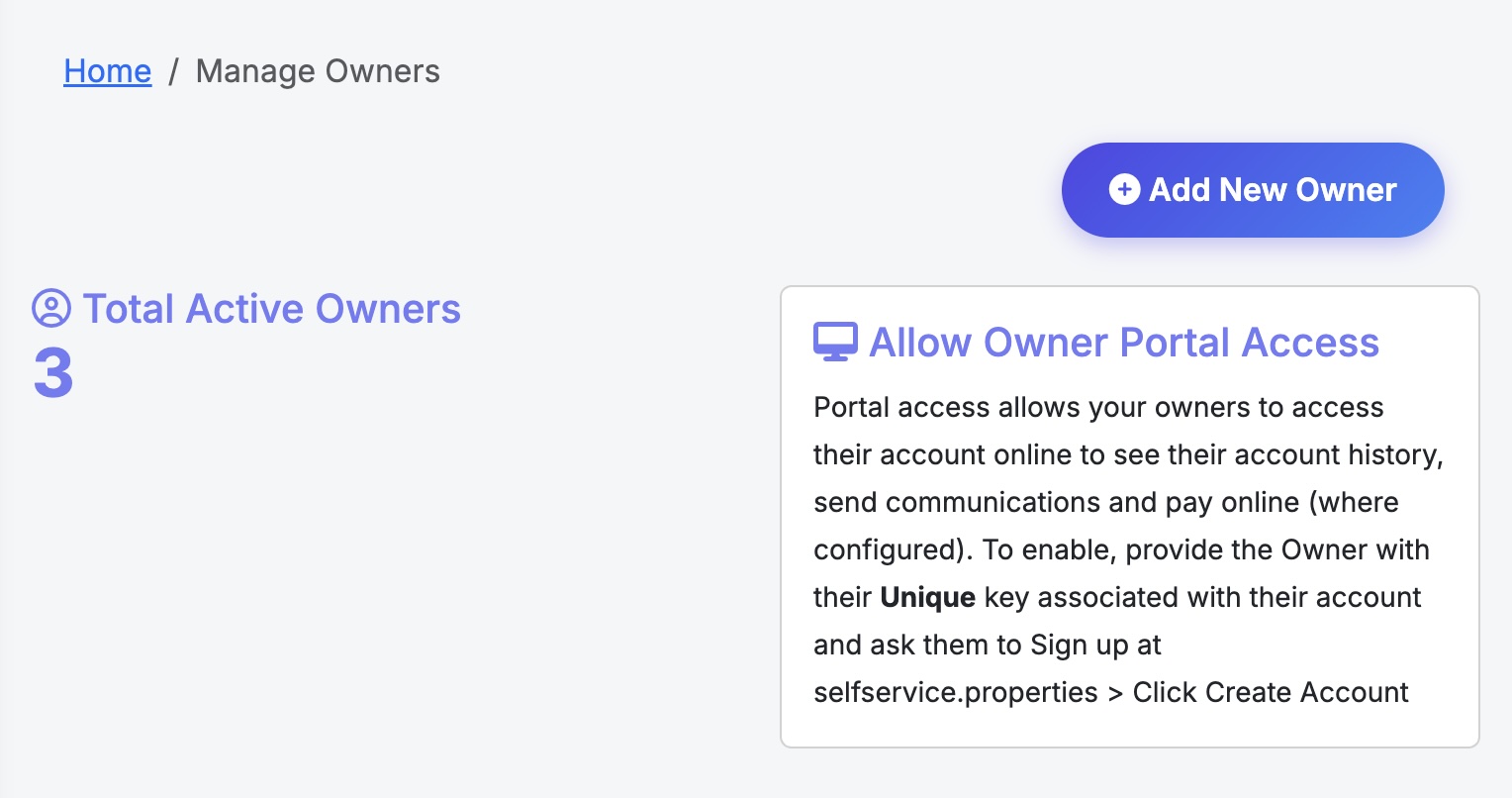
  • Grant owners read-only access to view their property financials via a secure invitation.
  • Generate P&L reports broken down by category, month, tenant, and property.

What Plan Do I Need?

  • Owner management is a Pro plan feature.
  • If you are managing properties for others, you will need to be on the Pro plan to access owner records, fee configuration, and the owner portal.
Is Landlord Cart Right for Property Managers? - Screenshot 1

Landlord Cart allows you to add property owners, configure your management fees, and give owners secure read-only access to their financials. All owner management features are available on the Pro plan.

Adding an Owner

  • There are two ways to add or link an owner from the Properties screen:
Method How to Access What Happens
Link Property Owner button Click the button at the top of the Properties screen Takes you to the Owners List where you can click Add New Owner to create and link an owner
Self-Managed [Link to Owner] Click the link shown on each individual property record Takes you directly to the owner form for that property in add mode — the faster path if you are already on the property
  • You can associate one or more properties to each owner.
  • You can upload your management contract directly to the owner record for recordkeeping.

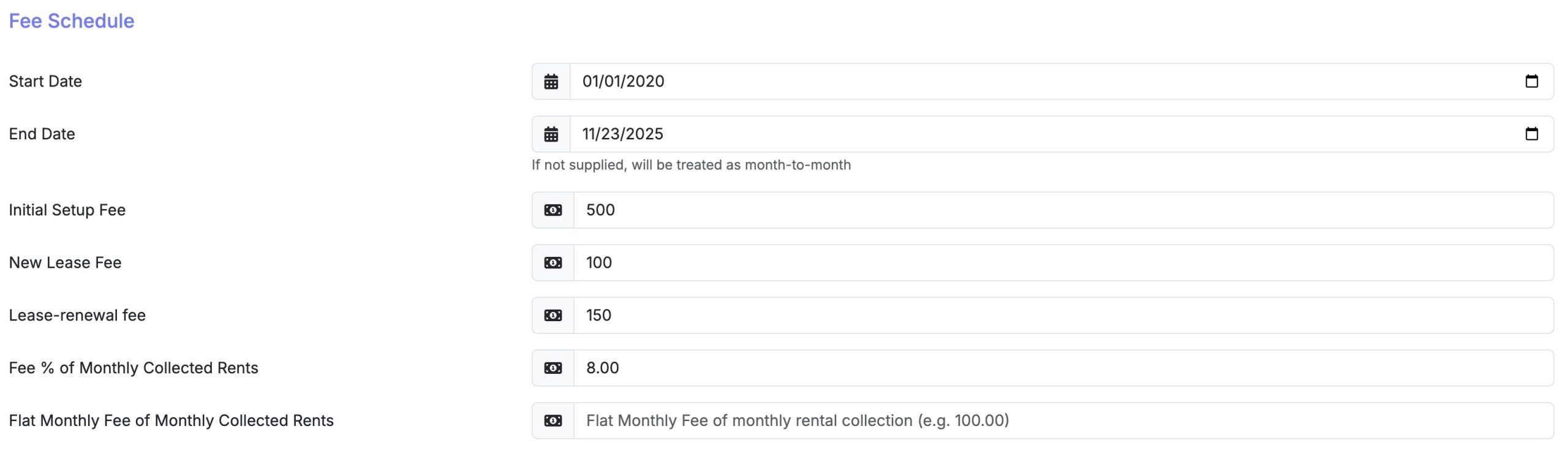
Configuring Management Fees

  • Each owner record includes fields to define your full fee structure.
  • Landlord Cart supports the following fee types:
Fee Type Description
Initial Setup Fee One-time fee charged when onboarding a new owner
New Lease Fee Fee charged when a new lease is signed
Lease Renewal Fee Fee charged at each lease renewal
Fee % of Monthly Collected Rents Percentage-based management fee on collected rent
Flat Monthly Fee Fixed monthly management fee regardless of rent collected
  • Based on these settings, Landlord Cart will calculate what you owe each owner after your fees are deducted.
  • At this time, payment transfers to owners are not processed inside Landlord Cart. Disbursements must be handled outside the system.

Owner Portal Access

Inviting an Owner

  • You can grant an owner access to the system via a special invitation code.
  • Once accepted, the owner can log in and view all activity related to their properties.

What Owners Can See

  • Financials, expenses, charges, income, and all property-related activity.
  • Everything is in read-only mode. Owners cannot make any changes.

What Owners Cannot Do

  • Owners cannot edit any records, post charges, or modify settings.
  • All management control remains with you as the property manager.
Setting Up Owners and Management Fees - Screenshot 1
Setting Up Owners and Management Fees - Screenshot 2

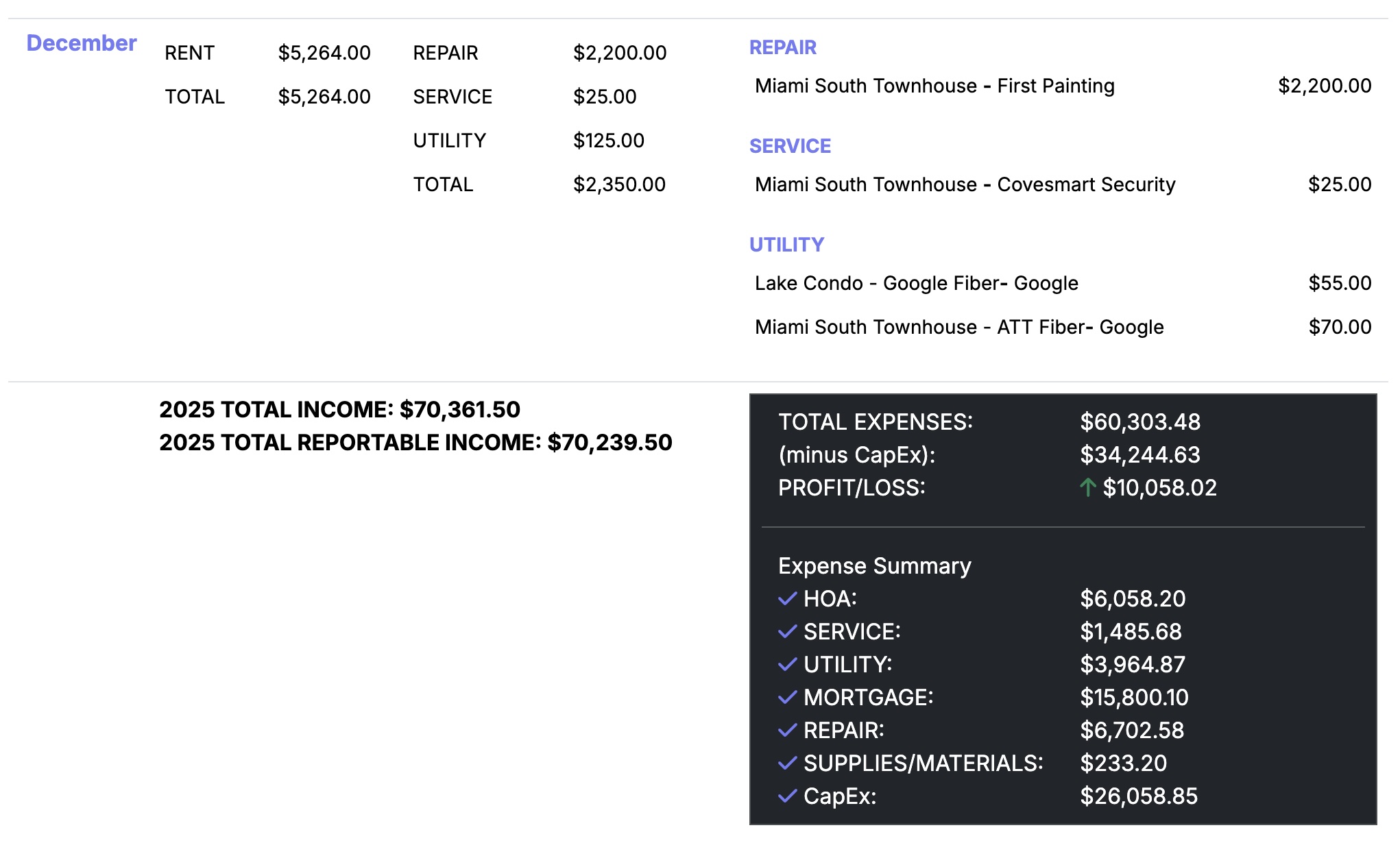
Landlord Cart includes a built-in chart of accounts and Profit and Loss report — there is nothing to configure or set up. Every time you log an expense, you simply assign it to one of the built-in categories below, and Landlord Cart automatically builds your financial picture over time. No accounting degree required — just track your expenses and let the platform do the rest.

Expense Categories

  • Your chart of accounts is category-based, not number-based — keeping things simple for DIY landlords without sacrificing accuracy.
  • Every expense you log is assigned to a category, which automatically rolls up into your P&L report and gives you a clear picture of where your money is going.
  • These categories align with IRS Schedule E line items, making tax time significantly easier.
  • Landlord Cart supports the following expense categories:
Category Common Uses
Service Landscaping, cleaning, pest control
Repair Plumbing, appliance repair, general maintenance
Utility Electric, water, gas, trash
Mortgage Principal and interest payments
Tax / Insurance Property taxes, landlord insurance premiums
HOA Homeowners association dues and assessments
CapEx / Improvements Roof replacement, HVAC, major upgrades
Supplies Cleaning products, hardware, small materials
Professional Fees Attorney, accountant, management fees
Bank Expenses Processing fees, returned check fees, wire fees

Profit and Loss Report

  • The P&L report gives you a full financial breakdown across your entire portfolio in one view.
  • You do not need to set anything up — the report builds automatically as you log income and expenses.
  • Reports can be filtered by:
  • Category — see total spending per expense type across all properties
  • Month — track financial performance over time and spot trends
  • Tenant — see all income and charges tied to a specific tenant
  • Property — isolate the full financial picture for any single property

Sharing Financials with Property Owners

  • The P&L report can be shared directly with property owners who have portal access.
  • This gives owners full transparency into their property’s performance without requiring phone calls or manual reports.
  • Professional landlords and property managers use this to build trust and reduce owner questions about where the money went.

Landlord Cart calculates exactly what you owe each property owner after your management fees are deducted, but owner disbursements are processed outside the system. Here is why, and what your options are.

Why Landlord Cart Does Not Process Owner Payments

  • Sending funds to third-party property owners requires a licensed money transmitter or ACH origination infrastructure, which falls outside the scope of a property management platform.
  • Owner disbursements vary widely in timing, method, and contractual terms — keeping this step outside the system gives you full control over how and when you pay.
  • Many property managers already have a preferred method such as ACH, check, or Zelle and do not need a platform to manage that relationship.

What Landlord Cart Does For You

  • Landlord Cart calculates the owner disbursement amount automatically based on your configured fee structure.
  • It tracks all income, expenses, and management fees so the numbers are always reconciled before you pay.
  • Owners with portal access can log in and see exactly what they are owed, reducing back-and-forth questions.
  • The P&L report gives owners a full breakdown by category, month, and property so there is never any ambiguity.

How to Pay Your Owners Outside Landlord Cart

Method Best For
ACH / Bank Transfer Most professional option, low cost, works for any amount
Zelle Fast, free, works well for smaller portfolios
Check Simple and documented, preferred by some owners
PayPal / Venmo Convenient but may have fees and transaction limits
Property Management Accounting Software Tools like Buildium or AppFolio include owner disbursement if you need it at scale
  • Whatever method you use, Landlord Cart gives you the accurate disbursement amount so you are never guessing what an owner is owed.

Plans, Support & Billing

Landlord Cart is built to grow with you. We offer straightforward, no-nonsense pricing with zero hidden fees, zero upsells, and zero binding contracts.

Our Plans:

  • Free Forever: Perfect for getting started with up to 2 units. Includes tenant portals, maintenance tracking, and manual expense logging.

  • Starter Plan ($99/year): Ideal for managing up to 10 units. Adds AI-powered late fees, SMS reminders, professional lease templates, and custom branding with your logo.

  • Professional Plan ($249/year): Full automation for portfolios up to 30 units. Includes a dedicated Owners Portal, white-glove migration, and AI auto-entry for expenses.

The Landlord Guarantee: In most cases, you keep 100% of your rent. The only exception is if you choose to pay platform or bank fees yourself — in that case, fees are deducted before payout. Unlike other platforms, we do not take a percentage of your cash flow. You can upgrade or downgrade your plan directly from your dashboard.

To cancel your account, contact support so we can ensure your billing is cleared from our secure payment processor.

We are a team of real landlords based in the US. When you need help, you don’t have to navigate a maze of robots — you get real human assistance.

How to Connect:

  • Talk to Us (Fastest): Click the “Talk to Us” button in your dashboard. This is the fastest way to reach our technical team as it automatically links your request to your account. Most requests are answered within a few hours during business hours.
  • Email: rent@landlordcart.com
  • Call or Text: (877) 887-9482 — Monday through Friday, 9am–5pm Eastern Time. We answer our phones and respond to texts during business hours.

Moving from another software or a spreadsheet? We make the transition seamless so you don’t have to spend hours on data entry.

Onboarding Resources:

  • Free Data Migration (Professional Plan): Our team will import your properties, tenants, and active lease data for you. Migration typically covers your property list, tenant records, and current lease data. Historical payment records prior to migration are not imported — we recommend keeping a local backup of those records.
  • Live Training: Schedule a live walkthrough with our team. We’ll show you the ropes and ensure your first rent collection is set up for success. To schedule, contact support via the “Talk to Us” button or call (877) 887-9482.
  • Bank-Level Security: Your data is hosted on AWS with 256-bit encryption. We perform automatic daily backups, ensuring your property records are secure and accessible whenever you need them.

All data you enter into Landlord Cart — including payments, leases, expenses, messages, and attachments — belongs to you. Records and files are stored securely on Amazon AWS and are retained as long as your account is active.

Data Export

  • Landlord Cart does not currently offer a self-serve data export feature.
  • Over time your account can accumulate a significant amount of data, particularly with attachments and documents stored on AWS, making bulk exports impractical through the interface.

Requesting an Export

If you need records exported for specific purposes such as a court case, eviction preparation, or legal documentation, our support team can assist directly.

  • Open a support ticket using the Talk to Us button in your dashboard.
  • Describe what records you need and the reason for the request.
  • Our team will access the database directly and send you the requested data.

Contact Support

  • Email: careteam@landlordcart.com
  • Phone/Text: (877) 887-9482 — Monday through Friday, 9am-5pm Eastern Time
★★★★ Rated 4.7/5 on DIYLandlordTools.com